4.1.1. Manually
You can create goals directly in Plansom. Write your goal in plain words. Always include “Why” it matters. Keep it short, measurable and linked to purpose.
Example
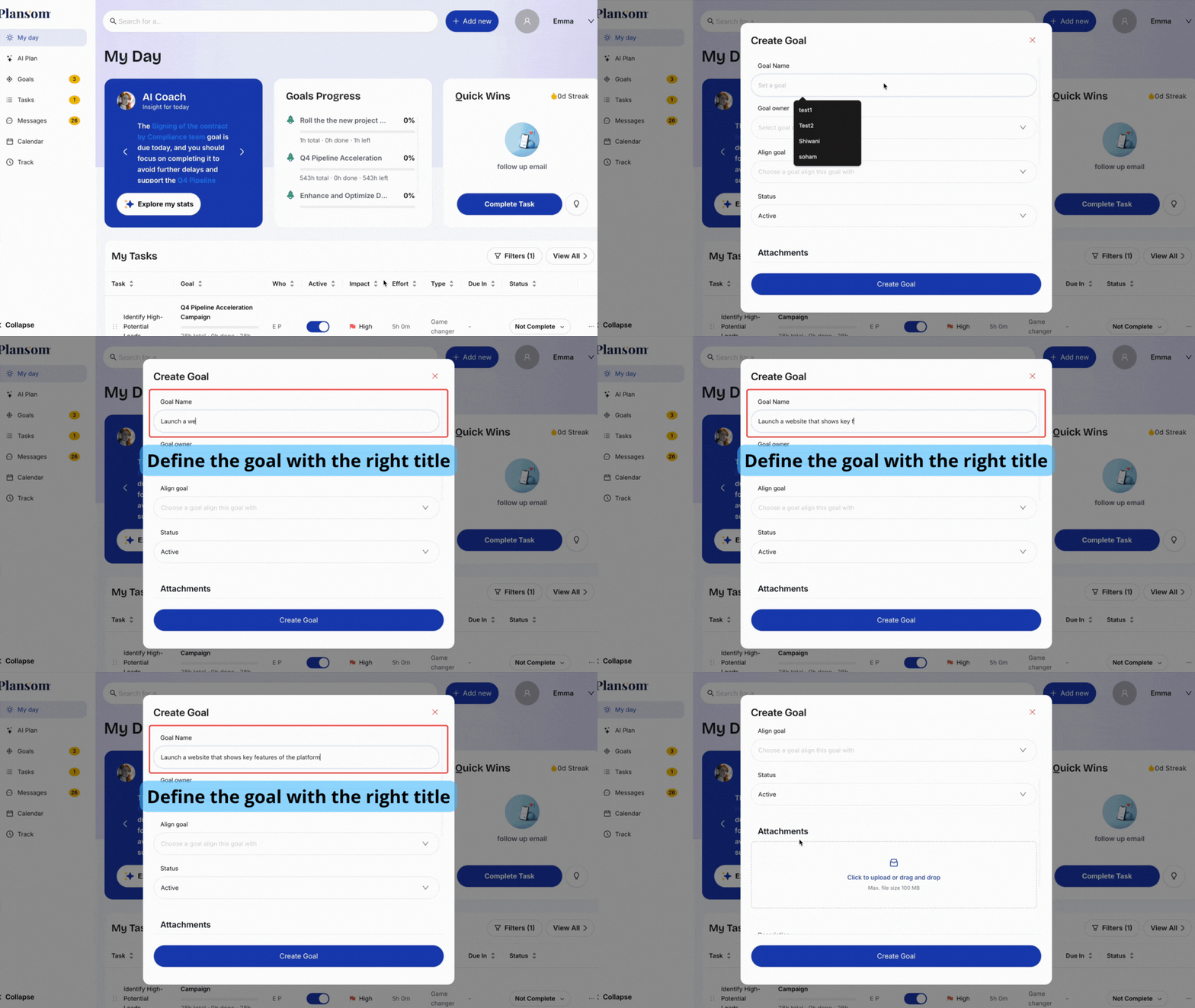
Goal: Launch a user-friendly website that showcases key features of the platform
To Add a Goal in Plansom:
- Click Add New and select Goal
- Type the goal in your own words
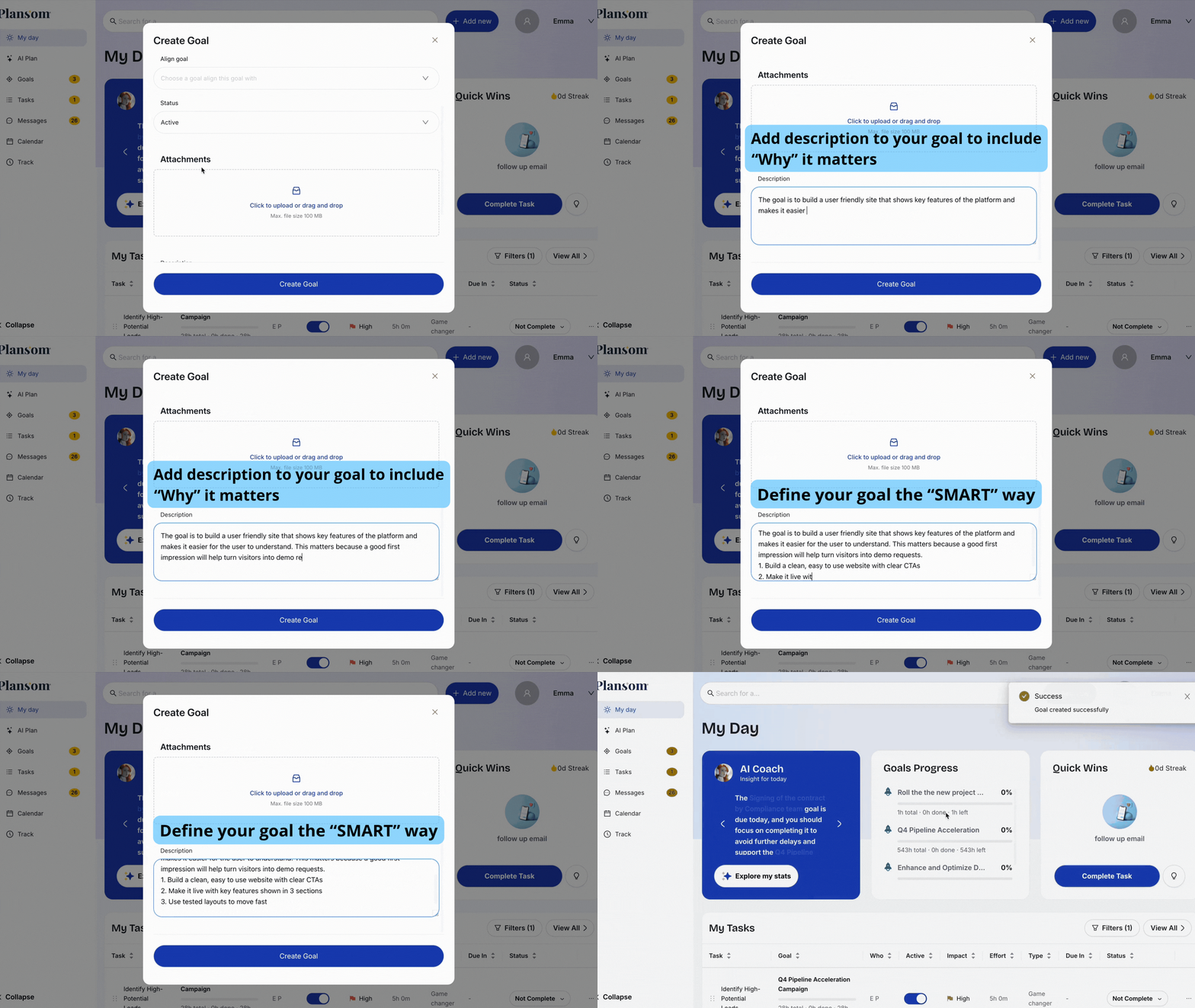
- Write a description that includes what you want and why it matters, e.g., “This will include developing a user-friendly interface and implementing visually appealing designs, to increase visibility and engagement.”
- Assign it to your desired goal owner
- Link it to a higher company objective if relevant
- Click Create Goal button to save it
Sub-goals:
Bigger goals are easier to reach when you break them into smaller wins. Open the desired goal that you want to break down
- Click Add New
- Select Goal, and add your subgoals under your goals
- Enter the sub-goal title
- Check that the sub-goal is aligned to the right parent goal
- Attach files if needed (e.g., research notes, competitor screenshots)
- Click Create Goal button to save the sub-goal under the main goal
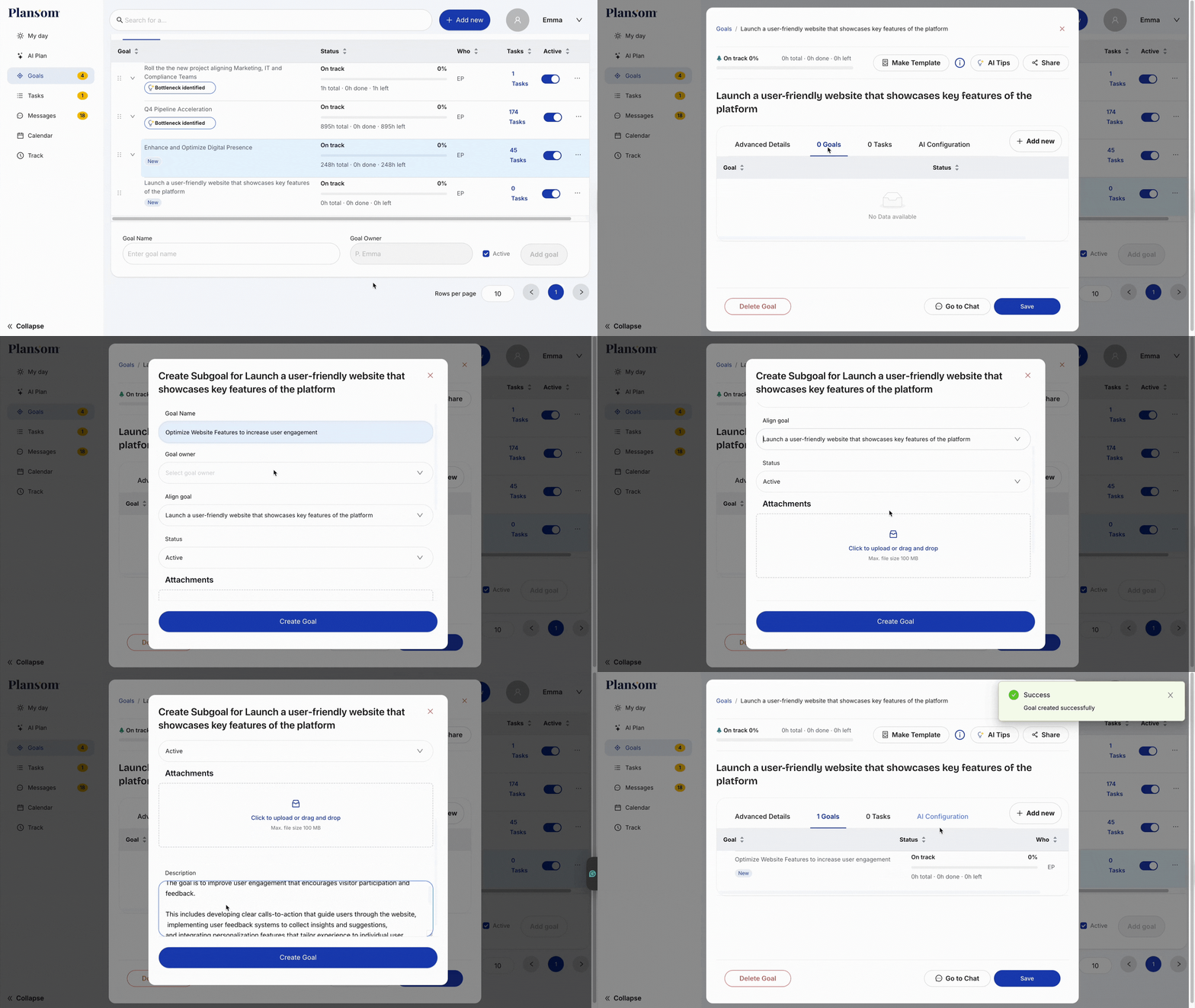
Each sub-goal must have its own “Why” and a clear success criterion.
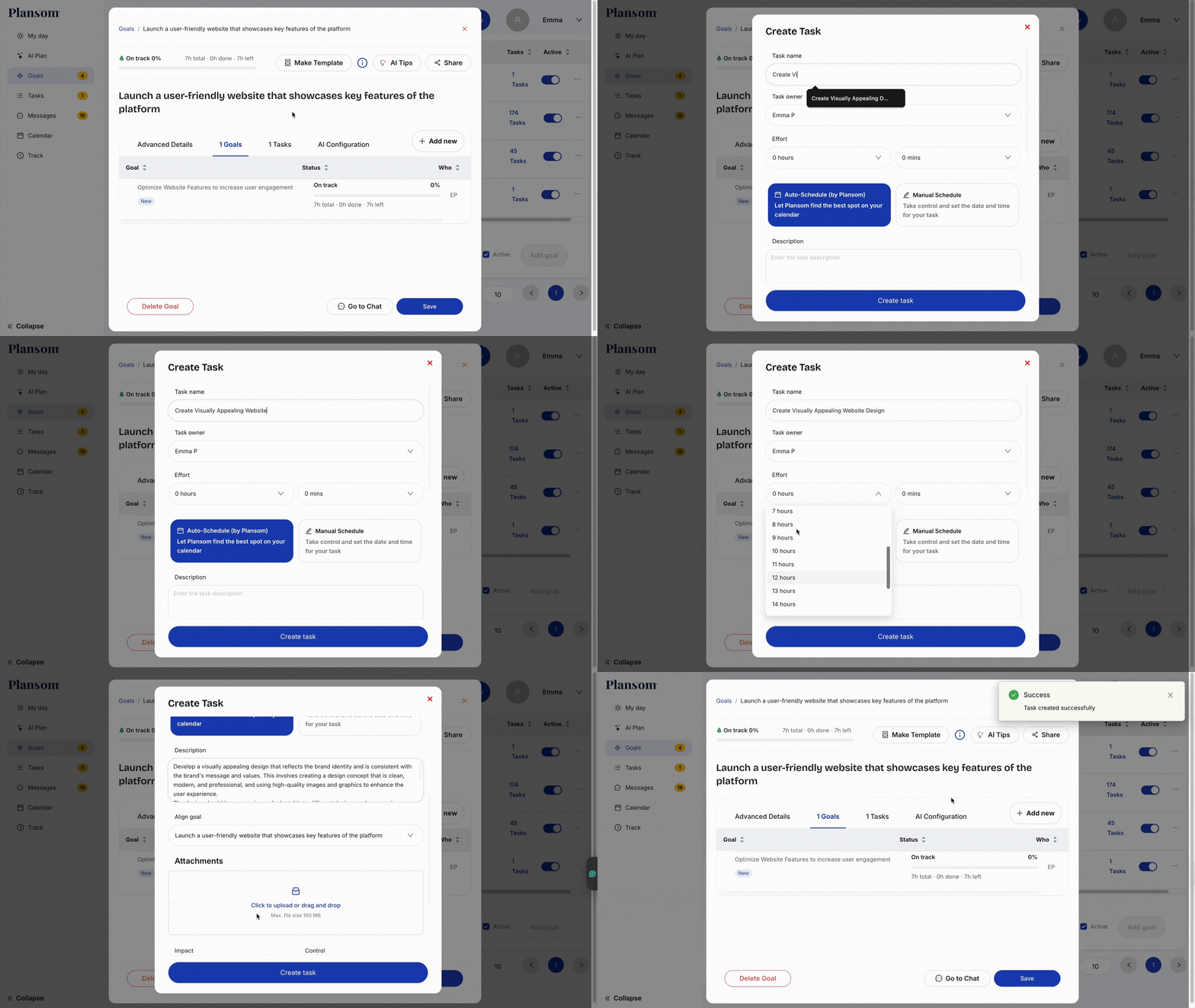
Tasks
Once you’ve set your goals and sub-goals, the next step is to add tasks.
- Click on Add New and choose Task
- Enter the task name, assign an owner and align the task with its sub-goal
- Add a description: what to do, why it matters, how it supports the goal
- Attach any required files or references
- Estimate the effort (time needed) and set the schedule
- Define the impact so you can prioritize tasks effectively
- Update progress as you work