5.3. Fellow
Overview
Plansom is an AI work platform that helps teams set goals, track execution, and get results with AI agents. Connecting Fellow lets your Plansom agents search and reference your meeting notes, transcripts, and action items — directly from inside Plansom's AI agent chat, without needing to leave Plansom.
How It Works
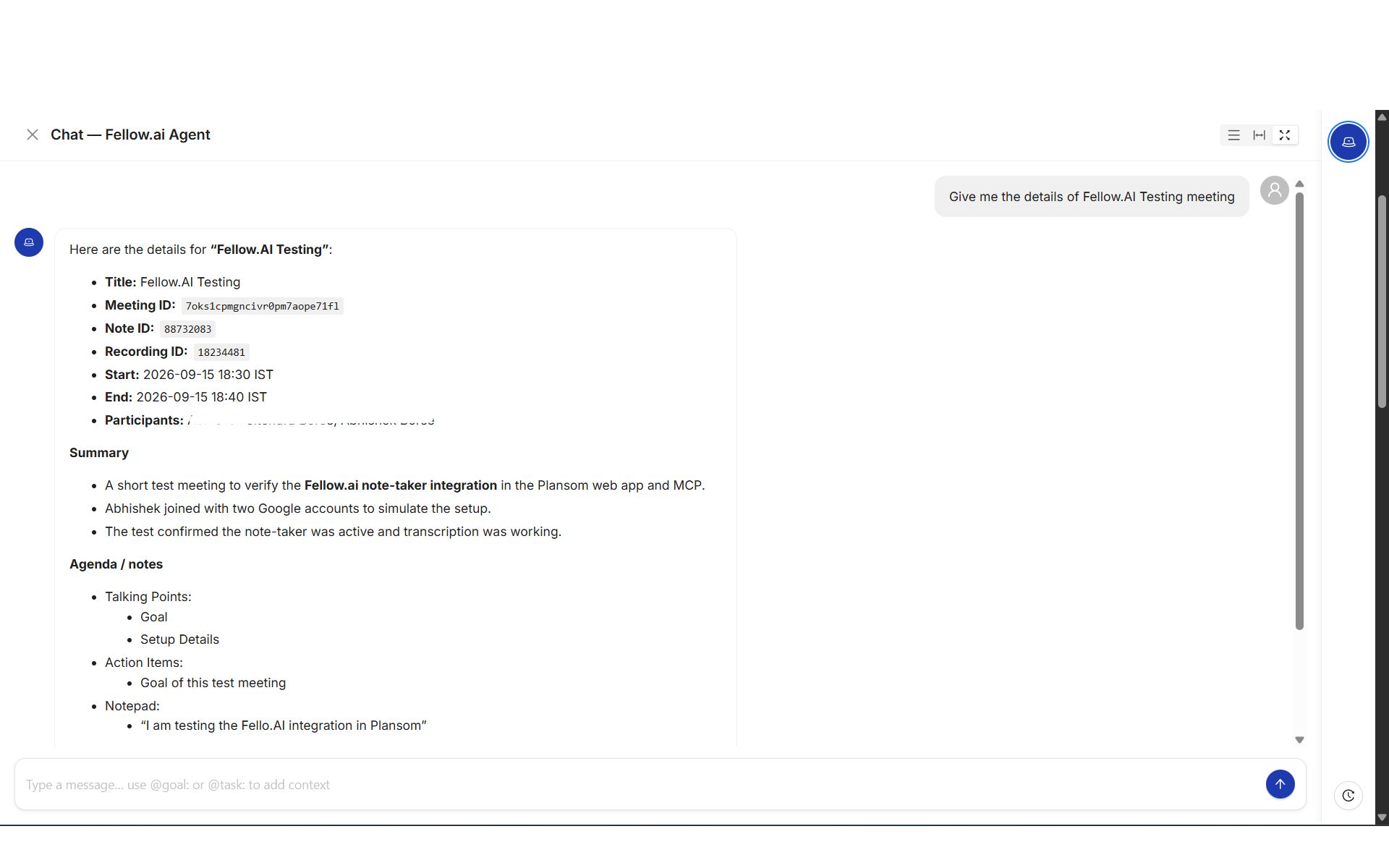
Once Fellow is connected and added to an agent, you can ask that agent anything about your meetings, and it answers directly in the conversation using real Fellow data — for example, pulling up a meeting's summary, agenda, and action items.
Before You Connect
Fellow requires a workspace admin to separately enable MCP access before any external app, including Plansom, can connect to it. In Fellow, go to Workspace settings → Security, and turn on "Allow users to use Fellow's MCP Server" under the Connections section.
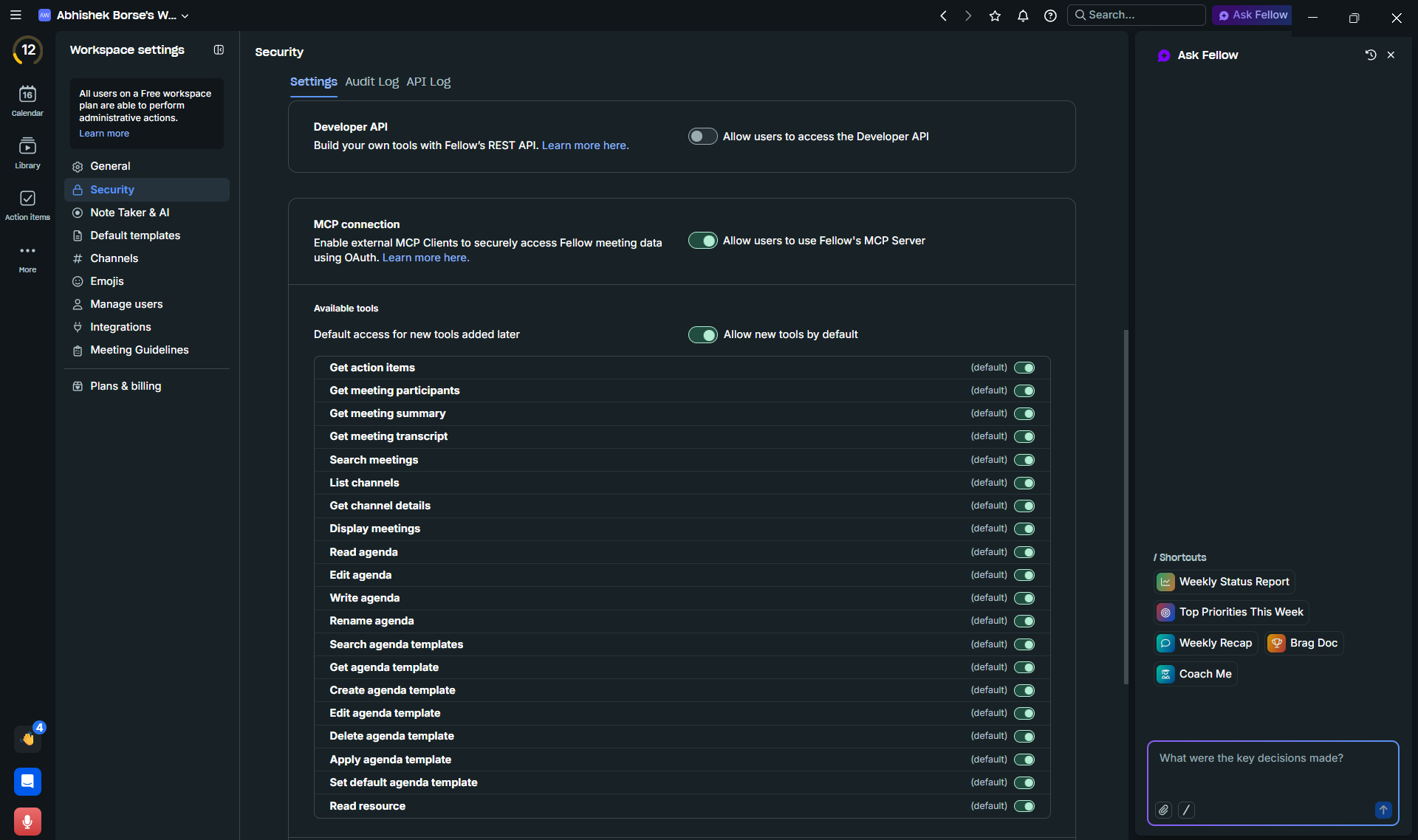
This is a one-time setup step done in Fellow itself, by a Fellow workspace admin — not something configured inside Plansom.
Connect Fellow
- Log in to Plansom, or sign up if you do not have an account yet
- Open your profile's Account Details and go to the Integrations tab (also reachable from Connectors in the left sidebar)
- Find Fellow and click Connect

- Approve the connection on the Fellow authorization screen that opens
After You Connect
Once approved, you are redirected back to Plansom, and Plansom shows a "Fellow connected" confirmation message.
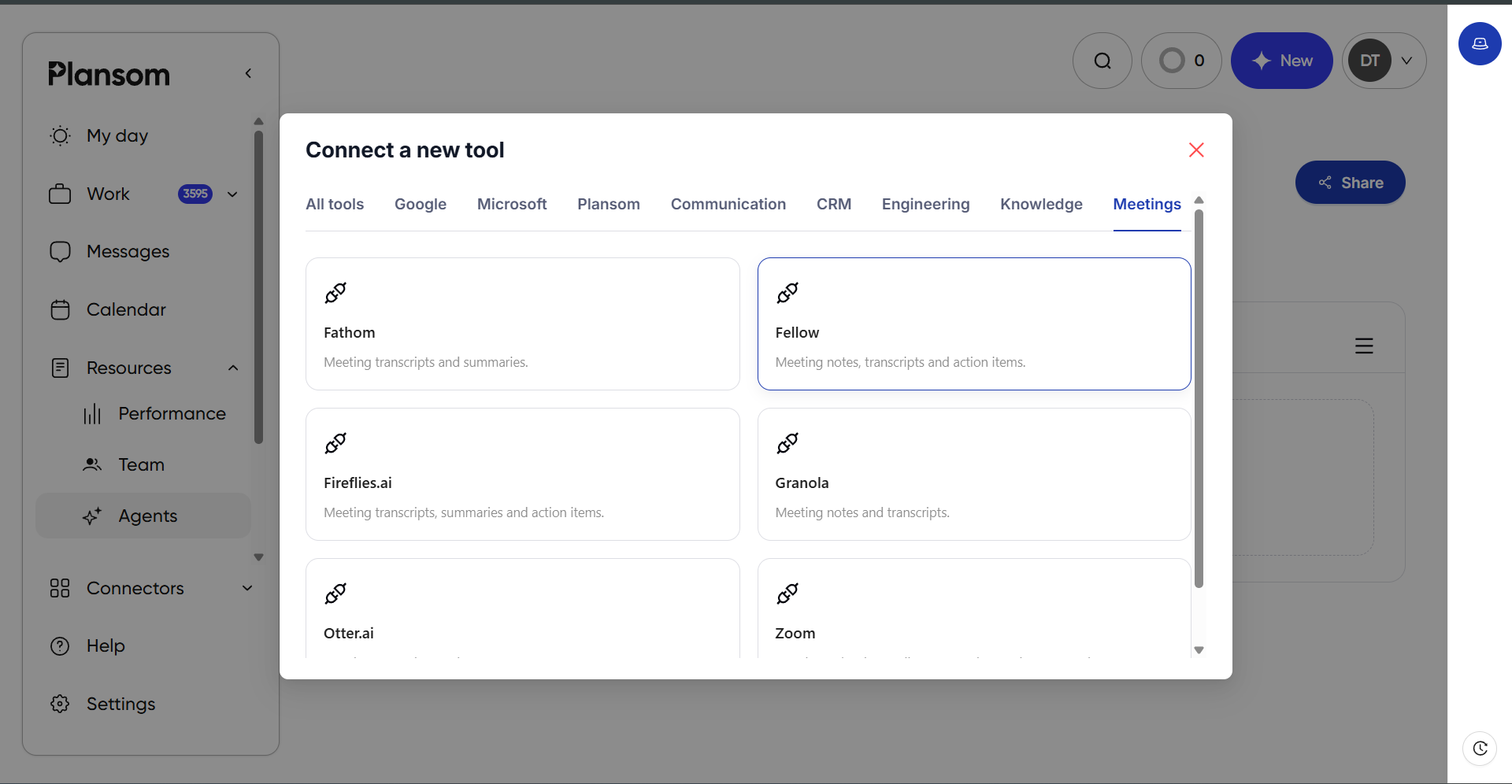
To start using it, add Fellow to an agent: create a new agent or open an existing one, go to its Tools tab, click Connect a new tool, and select Fellow under Meetings.
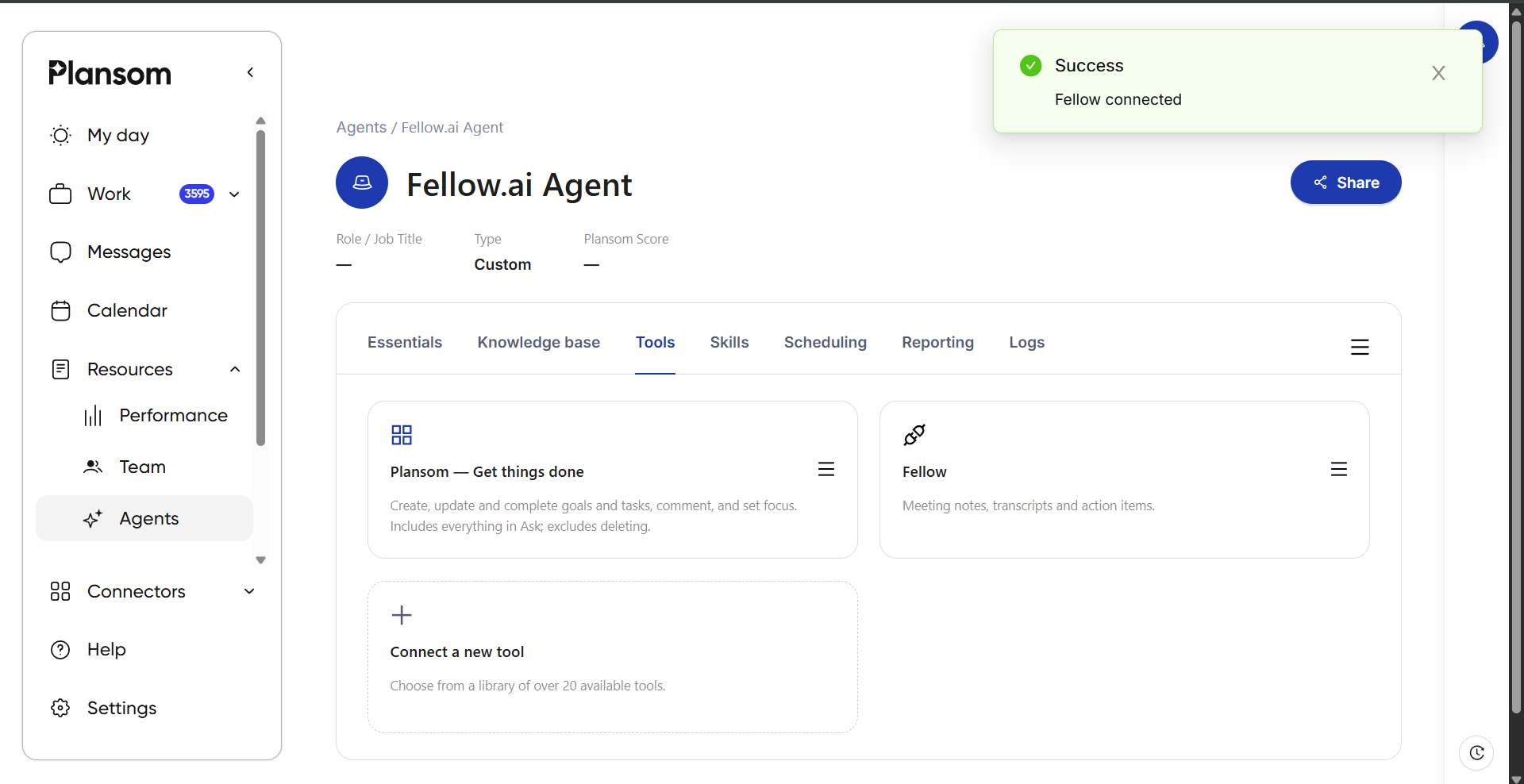
That agent can now use Fellow as context in conversations, as shown above in How It Works.
Privacy
Plansom's use of your Fellow data is governed by our Privacy Policy.