5.7. Make
Overview
Plansom is an AI work platform that helps teams set goals, track execution, and get results with AI agents. Connecting Make lets your Plansom agents work with your Make automations (scenarios). Agents can list your scenarios, check their run history, run them, and find out why a run failed. They can then turn what they find into Plansom goals and tasks your team can track, all from inside Plansom's AI agent chat.
How It Works
Once Make is connected and added to an agent, you can ask that agent in plain language about your Make scenarios. For example, you can ask it to:
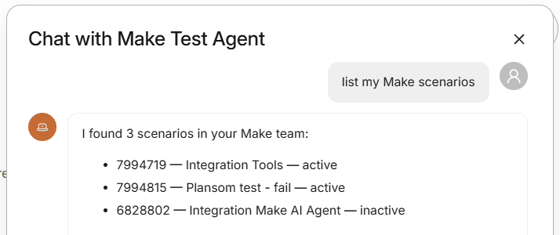
- See your scenarios: "List my Make scenarios."
- Check run history: "Show me the run history of my 'Weekly report' scenario. Did any run fail, and if so, why?"
- Run a scenario: "Run my Make scenario 'Weekly report' and tell me whether it succeeded."
- Find out why a run failed: "Run my Make scenario 'Sync new leads'. If it fails, tell me which step failed and why."
- Turn a failure into a plan: "Create a goal 'Make automations' and a task in it to fix the failing 'Sync new leads' scenario. Include which step failed, the error, and the execution ID in the task description." Plansom is a goals and tasks platform, not just a Q&A chat, so the agent can act on what it finds.
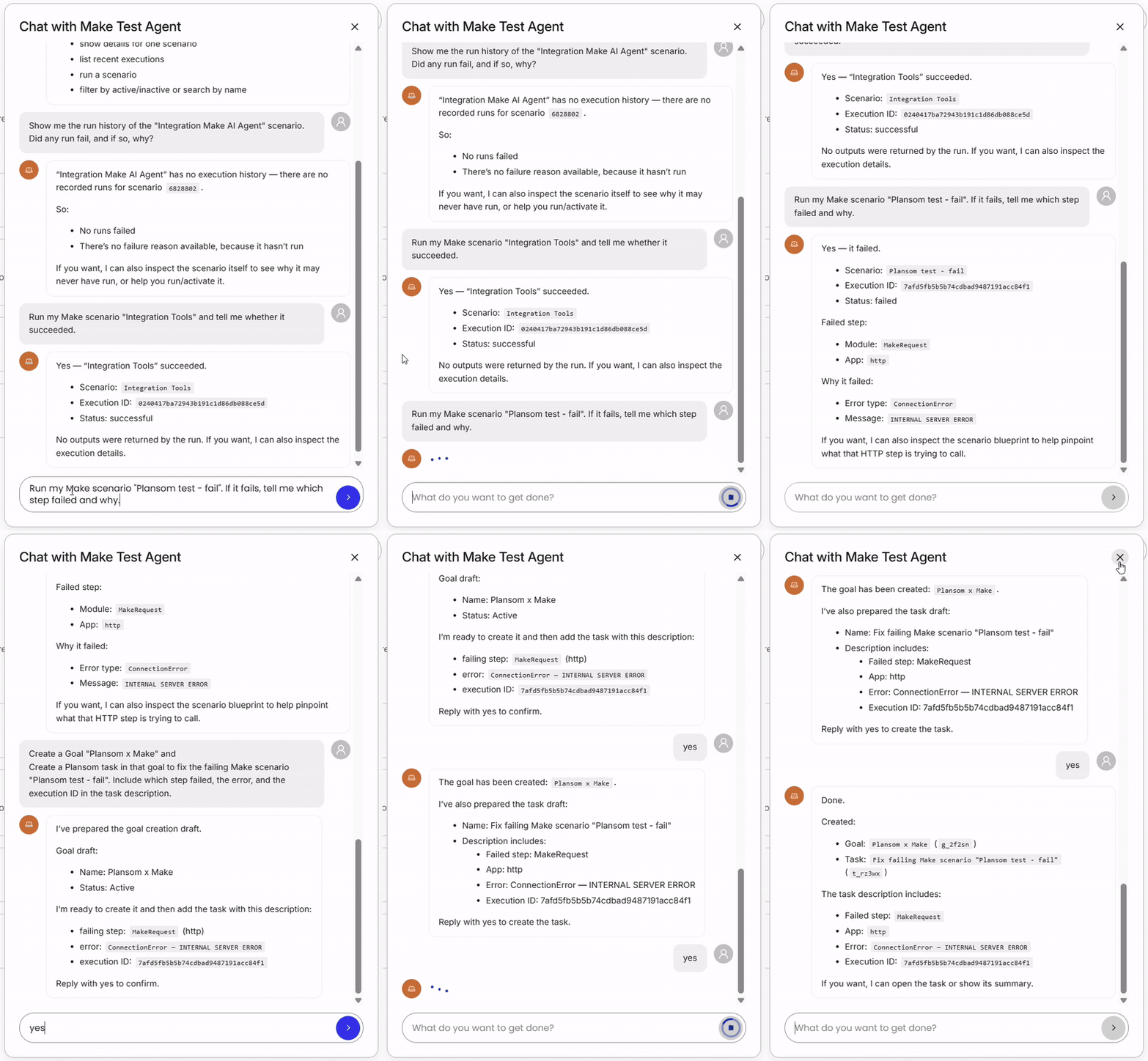
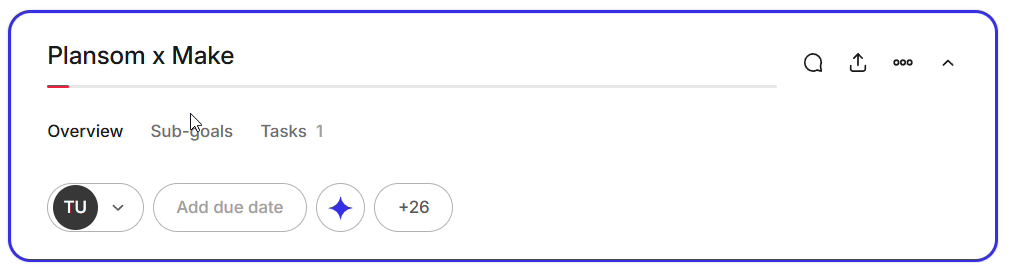
Before the agent creates a goal or task, Plansom shows you a draft and asks you to confirm. Tasks the agent creates live under the goal they move forward, so you can track progress in Work → Goals and see each next step in My day.
The agent can view and run your scenarios, but it can't create, edit, or delete them, and it can't see or change your connections or API keys in Make.
What you need
- A Make account (the free plan works). If you don't have one, you can create it while connecting.
- A Plansom account. Sign up if you don't have one yet.
Each team member connects their own Make account. The agent can only use the scenarios in the Make organization that person chose when connecting, and it acts as that person.
Scenarios the agent can run
The agent can view all scenarios in the organization you connect, but it can only run a scenario that is:
- Active: the scenario's switch in Make is turned on
- On demand: the scenario's schedule in Make is set to On demand
To set this up, open the scenario in Make, click its schedule (for example, Every 15 minutes), change Run scenario to On demand, save the scenario, and turn it on.
Make credits
Running a scenario from Plansom uses credits from your Make plan, exactly as if you ran it in Make. If your Make plan runs out of credits, the agent can't run scenarios until your credits reset or you upgrade. You can check your usage in your Make account.
Connect Make
- Log in to Plansom, or sign up if you do not have an account yet
- Go to Resources → Agents in the left sidebar and open the Connectors tab
- Find Make and click Connect Make

- Sign in to Make, or create a Make account if you don't have one
- On Make's authorization screen, choose the Organization Plansom should work with
- Leave the permissions Plansom selects for you as they are (Run your scenarios, and View and Run for Scenarios), then click Allow
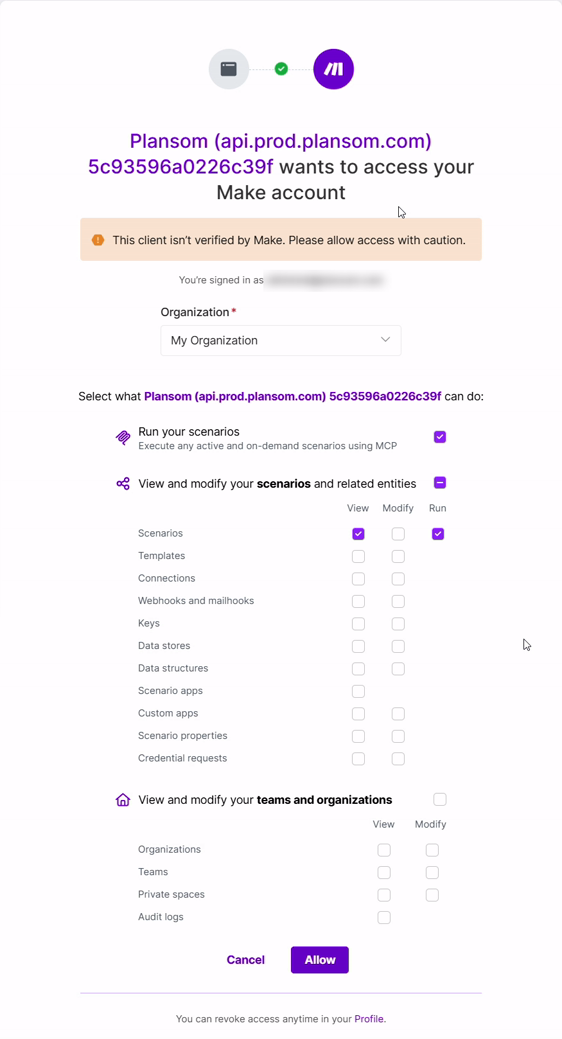
Make's screen shows the message "This client isn't verified by Make. Please allow access with caution." This is expected. Make shows it for apps it hasn't reviewed yet, and it doesn't change what Plansom can do: Plansom only uses the permissions above.
Plansom doesn't use the other permissions on that screen. Ticking them gives Plansom more access to your Make account than it needs, and can stop the agent from loading Make's tools, so leave them unticked.
If the connection doesn't go as expected, see Troubleshooting.
After You Connect
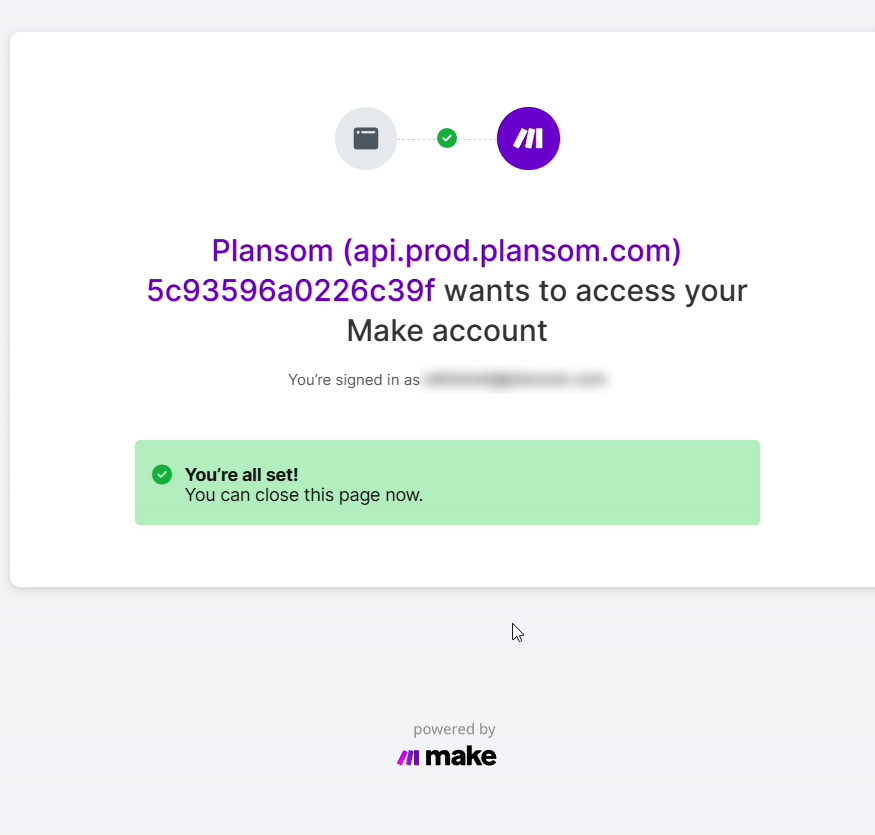
Make confirms with "You're all set!", and you are taken back to Plansom.
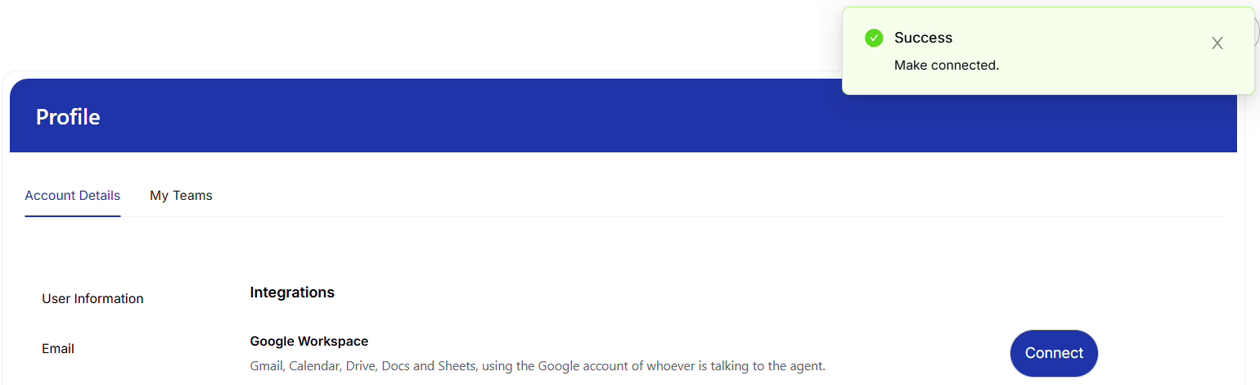
Plansom then shows a "Make connected" confirmation message.
In Resources → Agents → Connectors, Make now shows a switch that is turned on, which means it's connected.

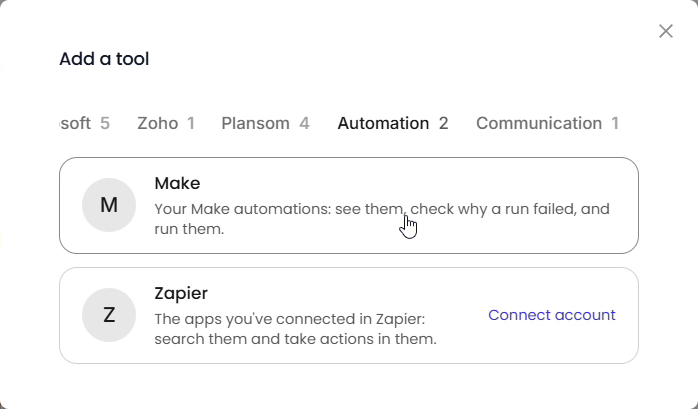
To start using it, add Make to an agent: create a new agent or open an existing one, go to its Tools tab, click Connect a new tool, and select Make under Automation. Add Plansom as a tool too, so the agent can create goals and tasks from what it finds in your scenarios.
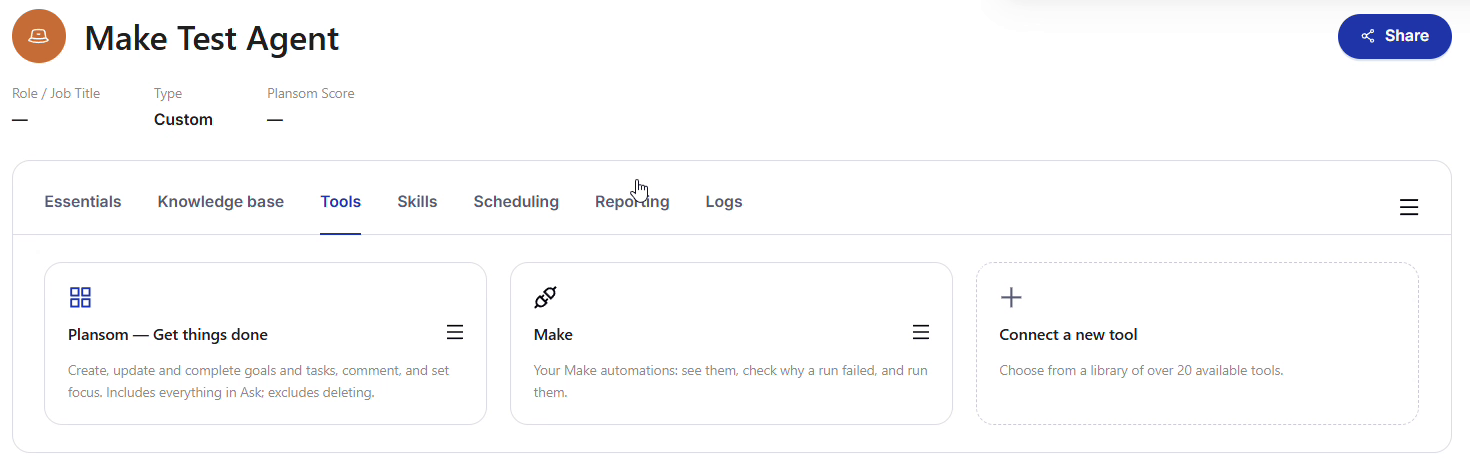
To start chatting with that agent, go to Resources → Agents in the left sidebar, find the agent's card, and click Chat on it.
Troubleshooting
- Make's authorization screen doesn't appear, or you aren't taken back to Plansom after clicking Allow: try connecting again from Resources → Agents → Connectors.
- The agent can't run a scenario: check that the scenario is turned on and set to On demand in Make (see Scenarios the agent can run), and that your Make plan still has credits (see Make credits).
- The agent doesn't find a scenario you expect: Plansom only sees the Make organization you chose when connecting. To use a different organization, disconnect Make and connect again, choosing that organization.
- The agent says a run timed out: long-running scenarios can take longer than the agent waits. The run continues in Make, so check the scenario's History in Make, or ask the agent about the scenario's latest runs.
- The agent says Make isn't connected, but Make still shows as connected in Plansom: this can happen if Plansom's access was removed in Make. Disconnect Make in Resources → Agents → Connectors, then connect it again.
- The agent asks you to connect Make: your Make connection was removed. Connect it again as described in Connect Make.
If the issue persists, contact support.
Disconnect Make
- Go to Resources → Agents in the left sidebar and open the Connectors tab
- Find Make and turn off its switch
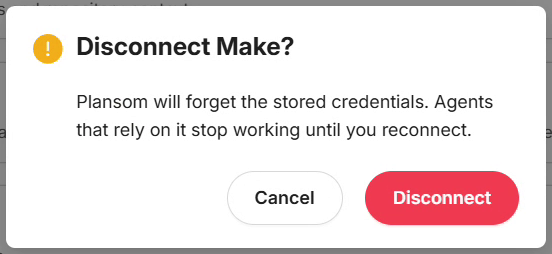
- Click Disconnect to confirm
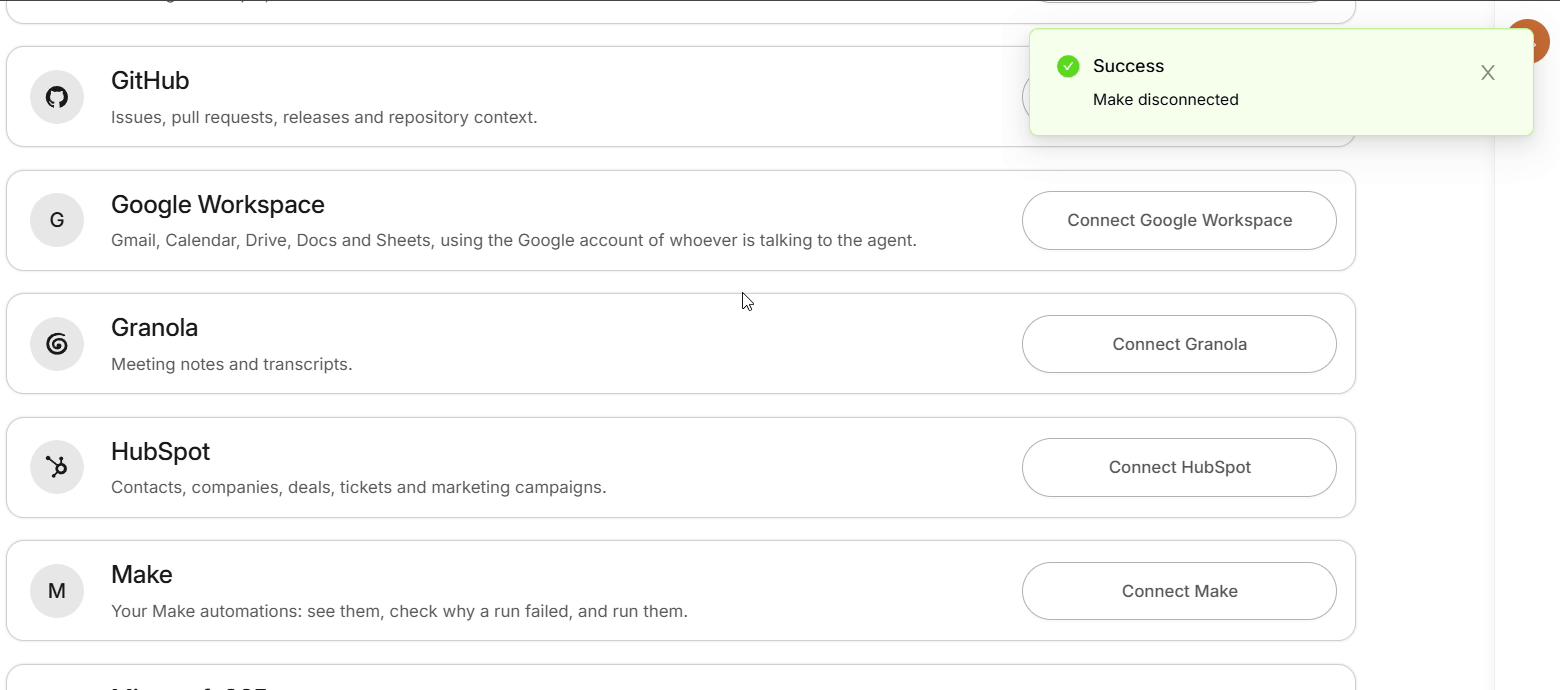
Plansom shows a "Make disconnected" message, and Make shows Connect Make again.
Disconnecting immediately stops Plansom from using your Make account. It does not delete any goals, tasks, or other Plansom records already created, and it doesn't change your scenarios in Make.
Plansom stays listed in your Make account until you remove it there, as described below.
Removing Plansom from your Make account directly
You can also remove Plansom's access from Make's side:
- In Make, click your profile picture in the top right and open your profile
- Select API access in the left menu
- Under OAuth connections, find Plansom (api.prod.plansom.com), open the ⋮ menu next to it, and click Revoke access

This stops Plansom from using your Make account. If Make still shows as connected in Plansom afterwards, disconnect it there as well, as described in Disconnect Make.
Privacy
Plansom's use of your Make data is governed by our Privacy Policy.