5.11. Jira
Overview
Plansom is an AI work platform that helps teams set goals, track execution, and get results with AI agents. Connecting Jira lets your Plansom agents work with your Jira issues, projects, boards, sprints and comments. Agents can tell you what's open, keep Jira up to date, and turn your Jira work into Plansom goals and tasks your team can track, all from inside Plansom's AI agent chat.
How It Works
Once Jira is connected and added to an agent, you can ask that agent about your Jira work in plain language, and it answers using your live Jira data. For example, you can ask it to:
- See what's open: "What Jira projects do I have? Show me the open issues in "(Example) Billing System Dev" with their status and priority."
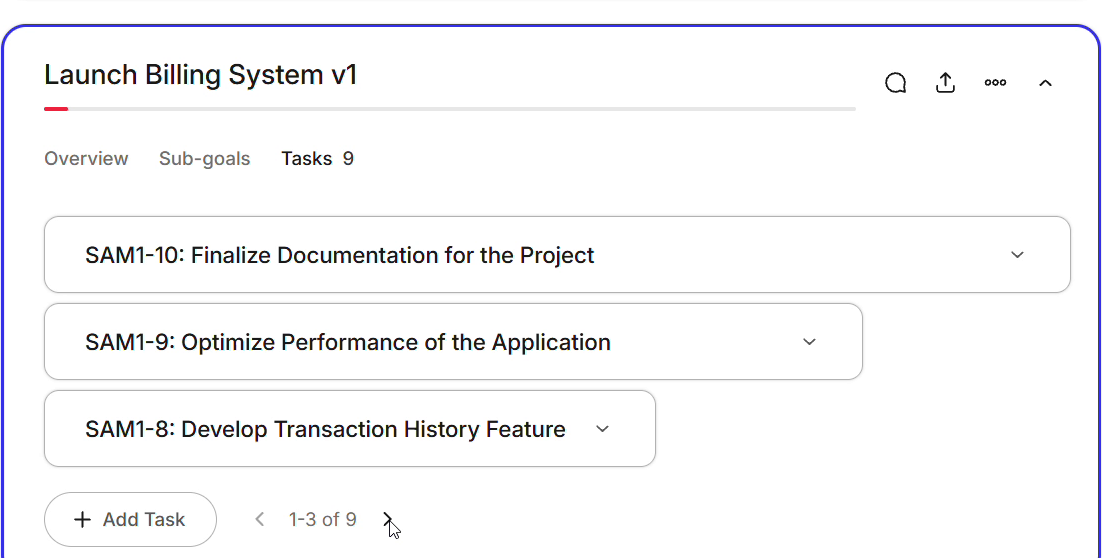
- Turn Jira work into a plan: "Create a Plansom goal 'Launch Billing System v1' and turn the open issues from "(Example) Billing System Dev" into tasks under it. Put the Jira key at the start of each task name, like 'SAM1-10: Finalize Documentation for the Project'." Plansom is a goals and tasks platform, not just a Q&A chat, so the agent can act on what it finds.
- Update Jira: "Add a comment on SAM1-10 in Jira saying: 'Now tracked in Plansom under the goal Launch Billing System v1.'"
- Keep both tools in step: "Move SAM1-9 to In Progress in Jira, and set the matching Plansom task to In Progress too."
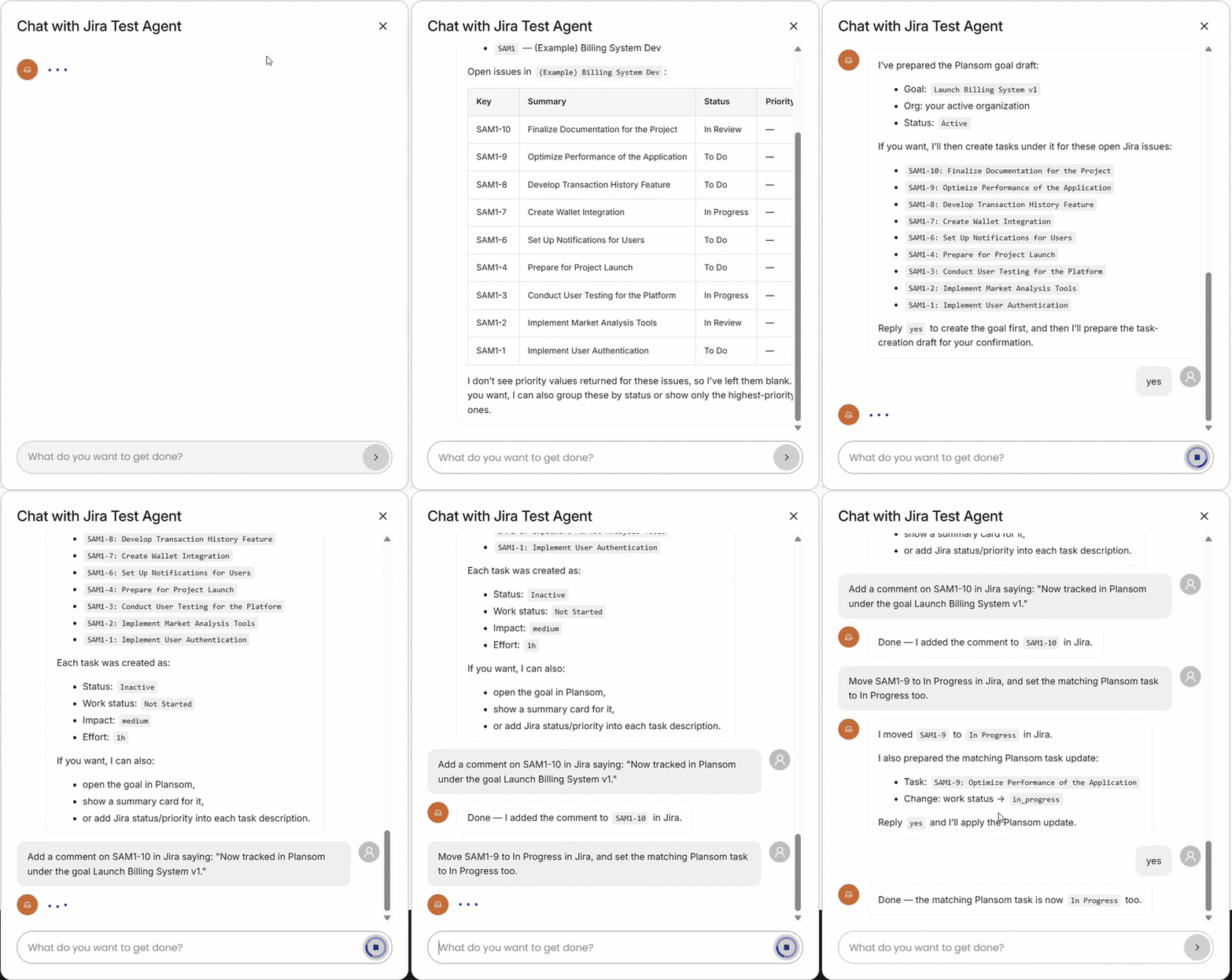
Before the agent creates or changes a goal or task in Plansom, it shows you a draft and asks you to confirm. Tasks the agent creates live under the goal they move forward, so you can track progress in Work → Goals and see each next step in My day.
When you ask the agent to change something in Jira, such as adding a comment or moving an issue to another status, it makes the change right away. Be specific about which issue you mean; the issue key (for example SAM1-10) is the clearest way.
What the agent can do in Jira
- Read: search issues (including with JQL); see issue details, comments, worklogs, change history, links and attachments; list projects, issue types, statuses, components and versions; and see boards, board configuration and sprints, filters and dashboards.
- Write: create and edit issues, move issues to another status, add and edit comments and worklogs, link issues, add attachments, manage project versions, and create boards.
The agent can't delete anything in Jira, and it can't create or change projects, workflows or screens.
What you need
- A Jira Cloud site. Jira works with Plansom on every Jira Cloud plan, including Free. Jira Data Center and Jira Server aren't supported.
- A Plansom account. Sign up if you don't have one yet.
- Your Atlassian organization admin to allow Plansom once (see Before You Connect).
Each team member connects their own Atlassian account. The agent acts as that person and works only with what they can already see and do in Jira. Everything the agent changes in Jira appears as made by that person.
Atlassian limits how many requests AI tools can make to a Jira site each hour, based on the site's plan, and the agent's Jira actions count toward that limit. Each question you ask can use several actions. Atlassian sets these limits and may change them; see Atlassian's Rovo MCP server page for the current numbers.
Before You Connect
Atlassian blocks outside AI tools from your Jira data until an admin allows them. Before anyone in your organization can connect Jira, an Atlassian organization admin needs to allow Plansom once. This is a one-time setup for the whole organization, not something each person needs to do.
Until it's done, Atlassian's screen shows "Access to this domain is restricted" when someone tries to connect, and the Accept button can't be clicked.
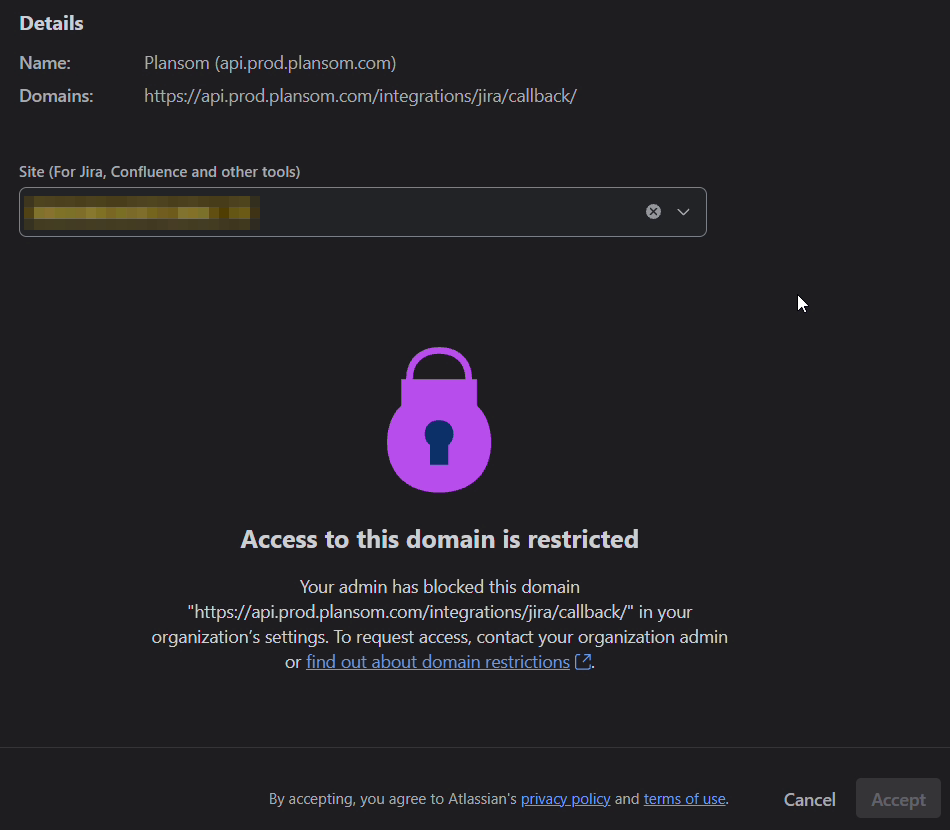
If you're an Atlassian organization admin
- Go to admin.atlassian.com and open your organization
- In the left sidebar, go to Rovo → Rovo MCP server
- On the Domains tab, click Add domain
- In Domain, enter exactly:
https://api.prod.plansom.com/integrations/jira/callback/
- Click Add
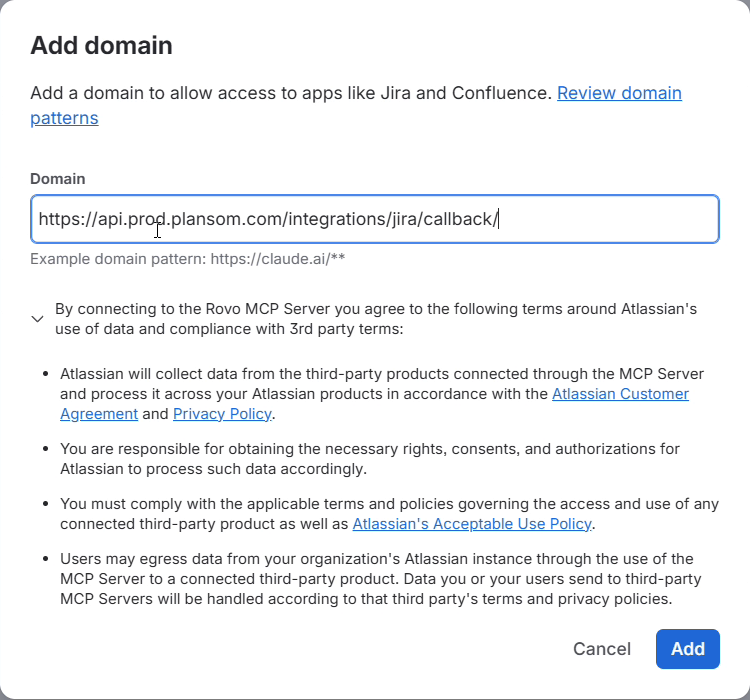
Atlassian shows a "Domain … added" message, and the address appears under Your domains.
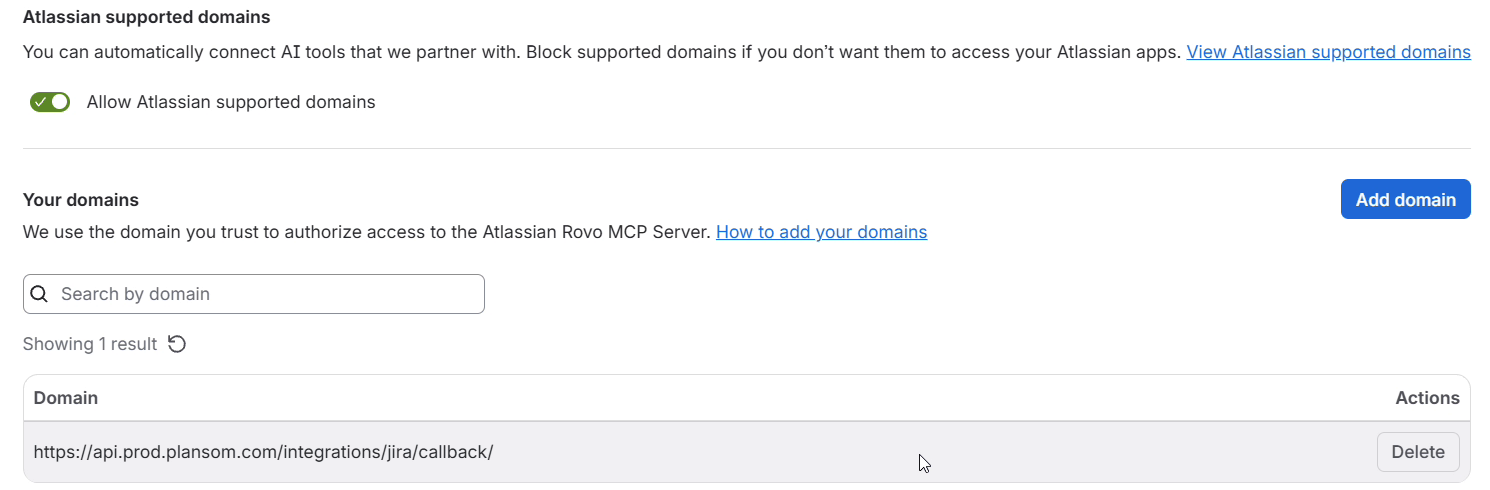
About this setting:
- Enter the address exactly as shown, including
https://and the/at the end. - It can take a few minutes before it starts working. If someone still sees "Access to this domain is restricted" straight after you add it, wait a few minutes and have them connect again from Plansom.
- Leave Allow Atlassian supported domains as it is. That switch controls other AI tools, not Plansom.
- The Permissions tab on the same page controls what AI tools may do in your organization. Read, Write and Search are allowed by default, and Plansom needs them. Delete and Manage are blocked by default; Plansom doesn't use them.
If you're not an admin
- If your admin has already allowed Plansom, just connect as described below.
- If you see "Access to this domain is restricted", send your Atlassian organization admin a link to this section and ask them to add Plansom's address. Then connect again.
Connect Jira
- Log in to Plansom, or sign up if you do not have an account yet
- Go to Resources → Agents in the left sidebar and open the Connectors tab
- Find Jira and click Connect Jira

- Log in to Atlassian if asked
- Atlassian shows "Plansom (api.prod.plansom.com) is requesting access to your Atlassian account". Under Site, choose your Jira site.
- Under Permissions, keep Read, Write and Search ticked, then click Accept
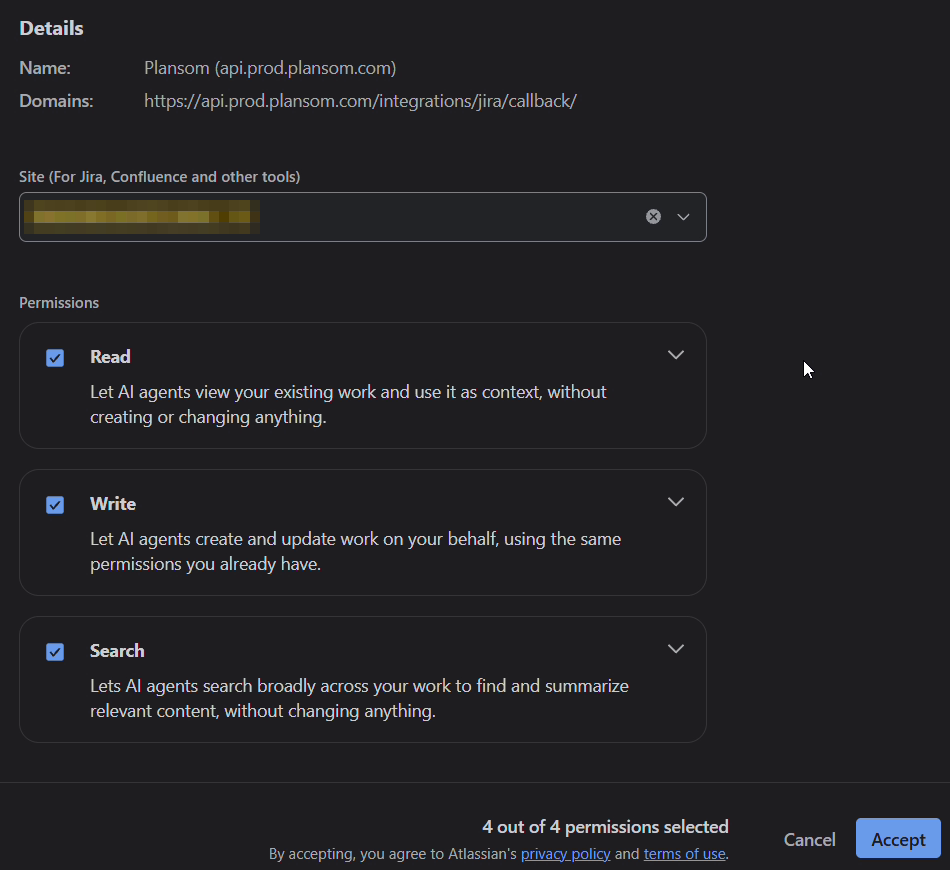
About this screen:
- Read lets the agent see your Jira work, Write lets it create and update issues and comments, and Search lets it find issues. If you untick one, the agent can't do those things.
- If Accept can't be clicked and you see "Access to this domain is restricted", your admin hasn't allowed Plansom yet. See Before You Connect.
If the connection doesn't go as expected, see Troubleshooting.
After You Connect
Once you've connected, you are taken back to Plansom, and Plansom shows a "Jira connected" confirmation message.
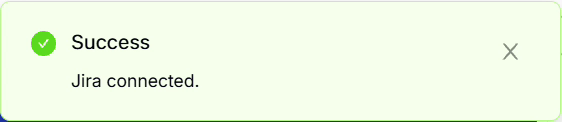
In Resources → Agents → Connectors, Jira now shows a switch that is turned on, which means it's connected.

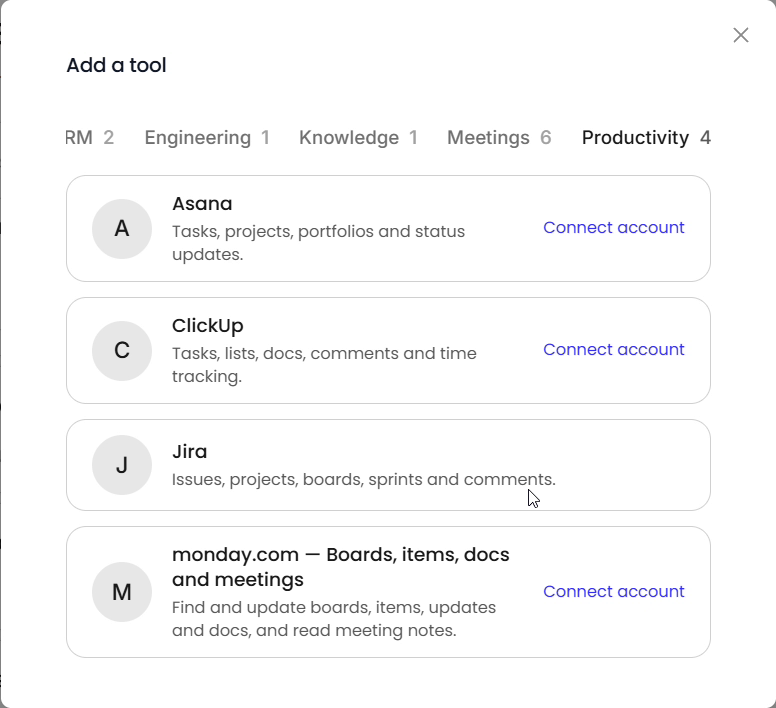
To start using it, add Jira to an agent: create a new agent or open an existing one, click + next to What tools does it need?, open the Productivity tab in Add a tool, and select Jira. Add Plansom — Get things done as a tool too, so the agent can create goals and tasks from your Jira work.

To start chatting with that agent, go to Resources → Agents in the left sidebar, find the agent's card, and click Chat on it. That agent can now use Jira in conversations, as shown above in How It Works.
Troubleshooting
- Atlassian says "Access to this domain is restricted" and Accept can't be clicked: your Atlassian organization hasn't allowed Plansom yet, or it was allowed only a few minutes ago. Ask your admin to follow Before You Connect, check the address was entered exactly, wait a few minutes, then connect again from Plansom.
- Atlassian says "Your account isn't associated with a supported site": the Atlassian account you logged in with doesn't have a Jira Cloud site. Log in with the account you use for Jira, or ask to be added to your company's Jira site.
- Atlassian shows "We're having trouble logging you in" or "Incorrect request parameters": the Atlassian page was reloaded or left open too long. Close it and click Connect Jira in Plansom again.
- Atlassian's screen doesn't appear, or you aren't taken back to Plansom after connecting: try connecting again from Resources → Agents → Connectors.
- The agent doesn't find a project or issue you expect: the agent only sees what your Atlassian account can access, on the Jira site you chose when connecting. To use a different site, disconnect Jira and connect again, choosing that site.
- The agent says it can't create or change something in Jira: you may have unticked Write when connecting, or your admin may have blocked it on the Permissions tab (see Before You Connect). Disconnect Jira and connect again with Write ticked, or ask your admin.
- The agent says Jira's limit has been reached: your Jira site has used up its hourly requests (see What you need). Try again later.
- The agent can't reach Jira, but Jira still shows as connected in Plansom: your admin may have removed Plansom's address (see Removing access in Atlassian). Ask them to add it back, then disconnect Jira in Resources → Agents → Connectors and connect it again.
- The agent asks you to connect Jira: your Jira connection was removed. Connect it again as described in Connect Jira.
If the issue persists, contact support.
Disconnect Jira
- Go to Resources → Agents in the left sidebar and open the Connectors tab
- Find Jira and turn off its switch
- Click Disconnect to confirm
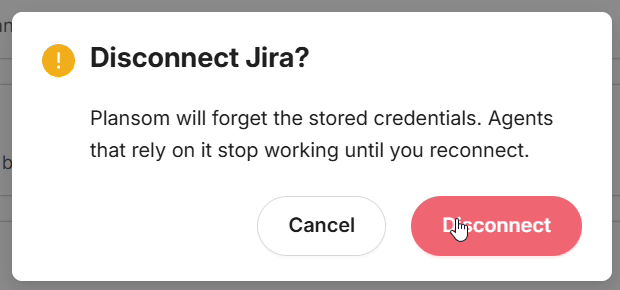
Plansom shows a "Jira disconnected" message, and Jira shows Connect Jira again.

Disconnecting immediately stops Plansom from using your Atlassian account. It does not delete any goals, tasks, or other Plansom records already created, and it doesn't change anything in Jira. Plansom stays allowed for your Atlassian organization, so you or your teammates can connect again at any time.
Removing access in Atlassian
An Atlassian organization admin can also remove Plansom's access from Atlassian's side. This applies to everyone in your Atlassian organization, not just one person:
- In admin.atlassian.com, go to Rovo → Rovo MCP server
- On the Domains tab, find
https://api.prod.plansom.com/integrations/jira/callback/under Your domains and click Delete - Click Delete again to confirm
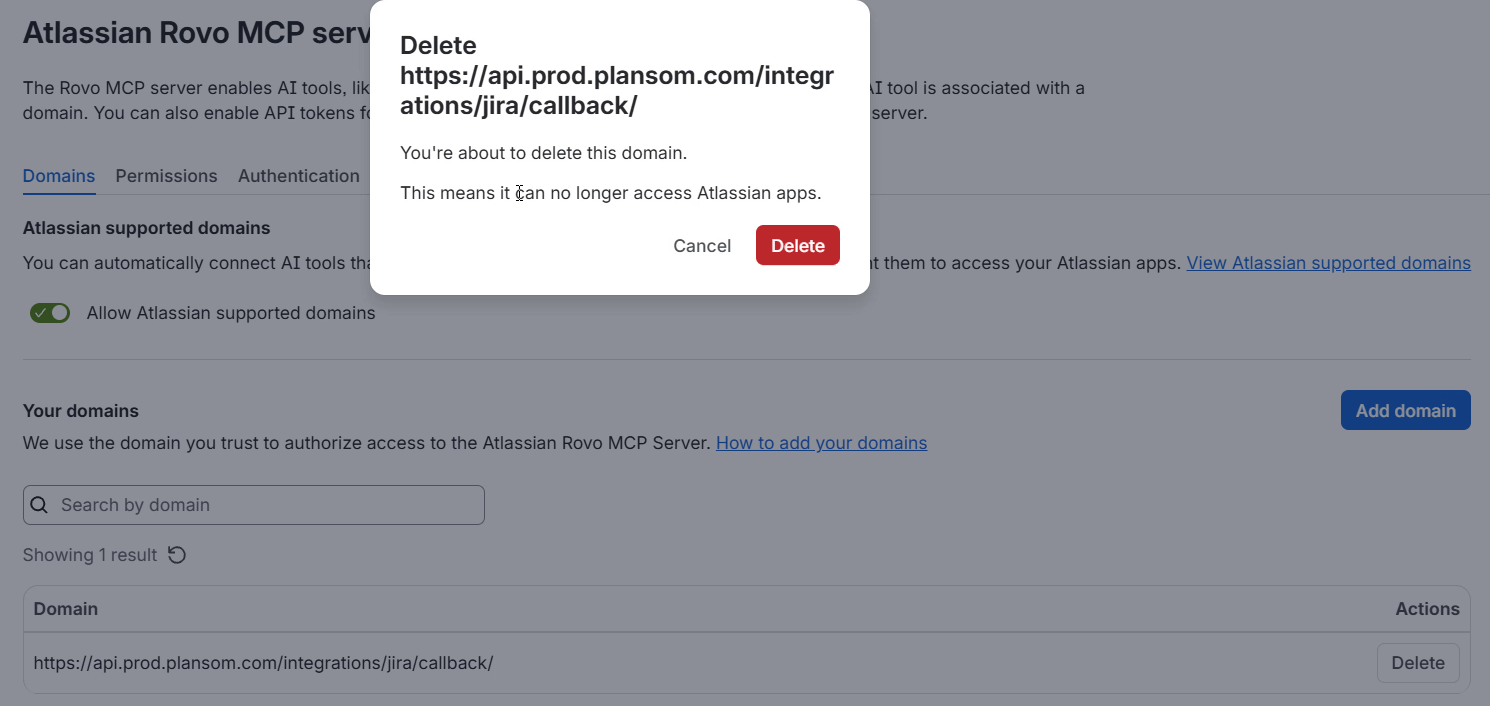
After that, Plansom's agents can no longer use Jira for anyone in that organization. To allow Plansom again, add the address back as described in Before You Connect. Issues, comments, and other content the agent added to Jira stay in Jira.
If you're not an admin and only want to stop Plansom using your own Atlassian account, disconnect it in Plansom as described in Disconnect Jira.
Privacy
Plansom's use of your Jira data is governed by our Privacy Policy.