5.12. Microsoft 365
Overview
Plansom is an AI work platform that helps teams set goals, track execution, and get results with AI agents. Connecting Microsoft 365 lets your Plansom agents work with your Outlook mail, calendar, OneDrive files, To Do and Planner tasks, contacts and SharePoint. Agents can answer questions about your Microsoft 365 work, keep it up to date, and turn it into Plansom goals and tasks your team can track, all from inside Plansom's AI agent chat.
Microsoft 365 works with work or school Microsoft accounts.
How It Works
Once Microsoft 365 is connected and its tools are added to an agent, you can ask that agent about your work in plain language, and it answers using your live Microsoft 365 data. Plansom is a goals and tasks platform, not just a Q&A chat, so the agent can also act on what it finds. Here are examples for each of the six Microsoft 365 tools (see One connection, six tools):
- "Read my latest email from Sarah and create a Plansom task for each action item in it."
- "Draft a reply to the email from Acme about the contract, saying we'll send the signed copy by Friday."
Calendar
- "What meetings do I have tomorrow? Add a prep task to My day for each one."
- "Book a 30-minute 'Q4 planning' meeting with alex@yourcompany.com on Friday at 3 pm."
Files
- "Find the 'Q4 budget' file in my OneDrive and share it with alex@yourcompany.com."
- "Upload a file called 'meeting-notes.txt' to my OneDrive with a summary of the tasks we just created."
Tasks
- "Show my open To Do tasks and add each one to Plansom under the goal 'Q4 launch'."
- "Add 'Send invoice to Acme' to my To Do list, due Monday."
Contacts
- "Add Priya Shah from Acme (priya@acme.com) to my Outlook contacts, and create a Plansom task to follow up with her next week."
- "What is Priya Shah's phone number?"
SharePoint
- "Read the Project Tracker list on our Communication site and create a Plansom goal 'Q4 projects' with the open items as tasks under it."
- "Mark 'Vendor contract review' as Done in the Project Tracker list, and complete the matching Plansom task."
Before the agent creates or changes a goal or task in Plansom, it shows you a draft and asks you to confirm. Tasks the agent creates live under the goal they move forward, so you can track progress in Work → Goals and see each next step in My day.
When you ask the agent to change something in Microsoft 365, such as sending an email or updating a SharePoint list item, it makes the change right away. Be specific about what you mean, for example the exact email, event or list item name.
One connection, six tools
Microsoft 365 works a little differently from other integrations:
- You connect Microsoft 365 once. One sign-in gives Plansom access to your mail, calendar, files, tasks, contacts and SharePoint.
- Then you choose which tools each agent gets. Microsoft 365 appears as six separate tools in Add a tool → Microsoft. Add only the ones an agent needs. For example, give a meeting-prep agent Calendar and Mail, and a project-tracking agent SharePoint.
Keeping each agent to the tools it needs makes it faster and more focused, and it can only touch the parts of Microsoft 365 you gave it.
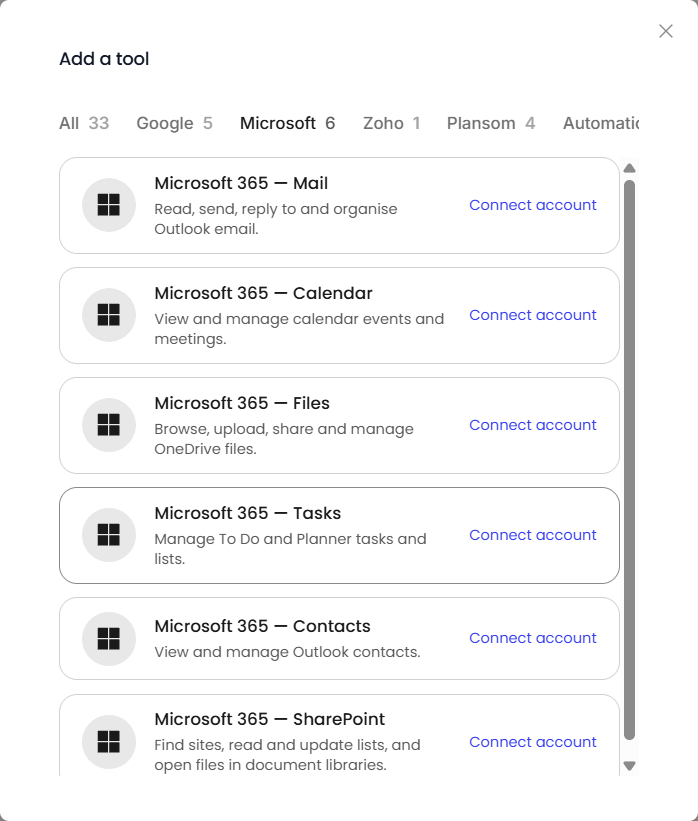
| Tool | What the agent can do |
|---|---|
| Microsoft 365 — Mail | Read, search, draft, send, reply to, forward, move and delete Outlook email |
| Microsoft 365 — Calendar | See your calendars and events; create, change and delete events; accept or decline invitations |
| Microsoft 365 — Files | Browse, search, upload, move, copy, delete and share your OneDrive files and folders |
| Microsoft 365 — Tasks | See, create, update and delete To Do lists and tasks; see, create and update Planner tasks |
| Microsoft 365 — Contacts | See, create, update and delete Outlook contacts |
| Microsoft 365 — SharePoint | Find sites, read and update lists, and open and upload files in document libraries |
What you need
- A Microsoft 365 work or school account. Personal Microsoft accounts (such as Outlook.com or Hotmail) can't be connected.
- For Mail and Calendar, an Outlook mailbox; for SharePoint, SharePoint in your Microsoft 365 plan. Most Microsoft 365 business plans include both.
- A Plansom account. Sign up if you don't have one yet.
- Depending on your company's settings, your IT admin may need to approve Plansom once (see Before You Connect).
Each team member connects their own Microsoft account. The agent acts as that person and works only with what they can already see and do in Microsoft 365. Everything the agent changes, such as emails it sends, appears as done by that person.
Before You Connect
Some companies only let employees connect apps that their IT admin has approved. If yours does, Microsoft shows "Need admin approval" when you try to connect, and you can't continue until an admin approves Plansom. This is a one-time step for the whole company, not something each person needs to do.
If you're a Microsoft 365 admin
The simplest way to approve Plansom for everyone is to connect it yourself once:
- Follow Connect Microsoft 365 below
- On Microsoft's Permissions requested screen, tick Consent on behalf of your organization
- Click Accept
After that, everyone in your company can connect Microsoft 365 without being asked for approval. For other ways to approve an app, see Microsoft's guide to granting admin consent.
If you're not an admin
- If you don't see "Need admin approval", just connect as described below.
- If you do, send your Microsoft 365 admin a link to this section and ask them to approve Plansom. Then connect again.
Connect Microsoft 365
- Log in to Plansom, or sign up if you do not have an account yet
- Go to Resources → Agents in the left sidebar and open the Connectors tab
- Find Microsoft 365 and click Connect Microsoft 365

- Sign in with your work or school Microsoft account
- Microsoft shows "Permissions requested" for Plansom, with the list of things Plansom will be able to do. Click Accept.
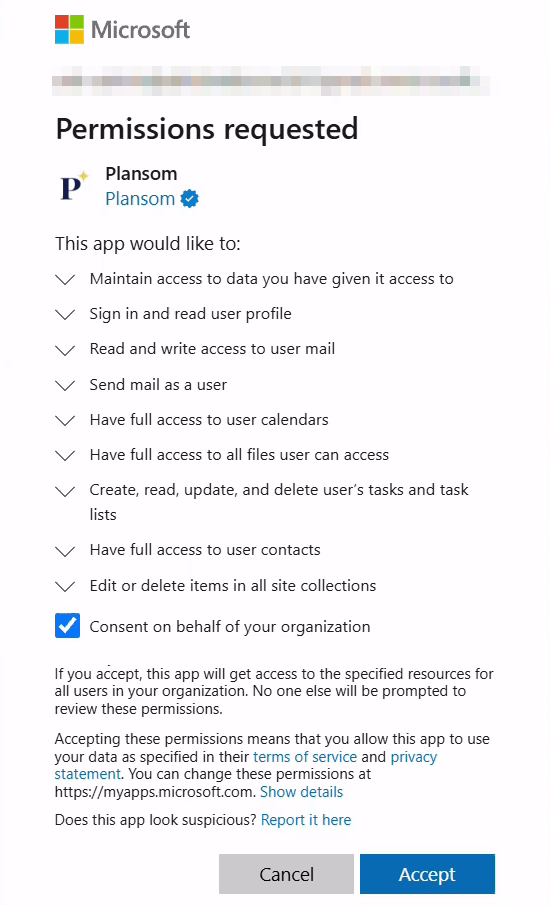
About this screen:
- It lists everything the six tools can use, even if you'll only add some of them to your agents. You still choose the tools per agent afterwards.
- Consent on behalf of your organization only appears for Microsoft 365 admins. Tick it to approve Plansom for everyone in your company (see Before You Connect).
- "Edit or delete items in all site collections" is for the SharePoint tool. The agent can still only reach sites you already have access to.
- If you see "Need admin approval" instead, see Before You Connect.
If the connection doesn't go as expected, see Troubleshooting.
After You Connect
Once you've connected, you are taken back to Plansom, and Plansom shows a "Microsoft 365 connected" confirmation message.
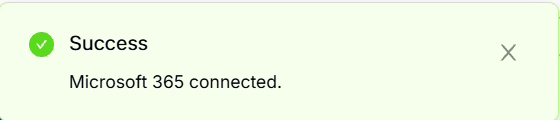
In Resources → Agents → Connectors, Microsoft 365 now shows a switch that is turned on, which means it's connected.

To start using it, add the Microsoft 365 tools you need to an agent:
- Create a new agent or open an existing one
- Click + next to What tools does it need?
- Open the Microsoft tab in Add a tool and select a tool, for example Microsoft 365 — SharePoint
- Repeat for each Microsoft 365 tool the agent needs
- Add Plansom — Get things done as a tool too, so the agent can create goals and tasks from your Microsoft 365 work

To start chatting with that agent, go to Resources → Agents in the left sidebar, find the agent's card, and click Chat on it. That agent can now use the tools you added, as shown above in How It Works.
Troubleshooting
- Microsoft says "You can't sign in here with a personal account": Plansom only works with work or school Microsoft accounts. Sign in with the account your company gave you.
- Microsoft says "Need admin approval": your company needs an admin to approve Plansom once. See Before You Connect.
- Plansom shows "Reconnect Microsoft 365": your connection was made before a newer Microsoft 365 tool, such as SharePoint, was added. Click Reconnect Microsoft 365 and accept Microsoft's screen once more. Until you do, your other Microsoft 365 tools keep working as before.
- The SharePoint tool shows "Requires a work account": the Microsoft account you connected doesn't have SharePoint access. Disconnect Microsoft 365 and connect again with your work or school account.
- The agent can't find a SharePoint site: give it the site's link, for example
https://yourcompany.sharepoint.com/sites/Marketing. Brand-new sites can take a while to show up in Microsoft's search. - The agent says it can't read a Word or PDF file: it can only read plain-text files. Copy the text you need into the chat instead.
- The agent says it can't reach your mail or calendar: your Microsoft 365 account may not have an Outlook mailbox. Ask your IT admin.
- The agent doesn't see an email, event, file or site you expect: it only sees what your own Microsoft account can access. Check that you connected the right account.
- Microsoft's screen doesn't appear, or you aren't taken back to Plansom after connecting: try connecting again from Resources → Agents → Connectors.
- The agent asks you to connect Microsoft 365: your connection was removed. Connect it again as described in Connect Microsoft 365.
If the issue persists, contact support.
Disconnect Microsoft 365
- Go to Resources → Agents in the left sidebar and open the Connectors tab
- Find Microsoft 365 and turn off its switch
- Click Disconnect to confirm
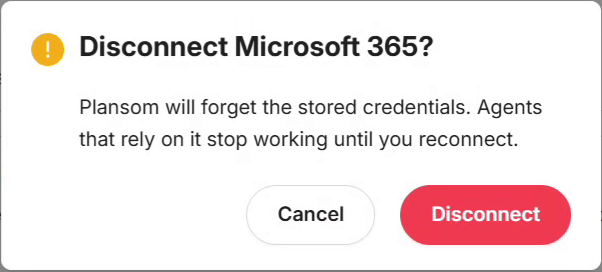
Plansom shows a "Microsoft 365 disconnected" message, and Microsoft 365 shows Connect Microsoft 365 again.
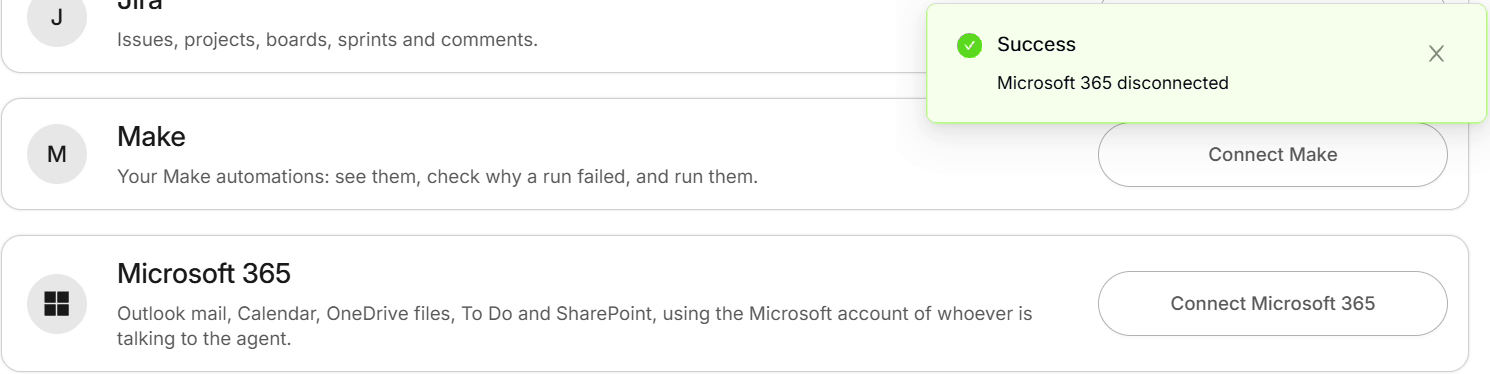
Disconnecting immediately stops Plansom from using your Microsoft account for all six tools. It does not delete any goals, tasks, or other Plansom records already created, and it doesn't change anything in Microsoft 365. You can connect again at any time.
Removing access in Microsoft
A Microsoft 365 admin can also remove Plansom's access from Microsoft's side. This applies to everyone in your company, not just one person:
- Go to the Microsoft Entra admin center
- Open Entra ID → Enterprise apps and select Plansom
- To remove access for everyone, open Properties, click Delete, then click Yes to confirm. To review or revoke individual permissions, open Permissions instead.
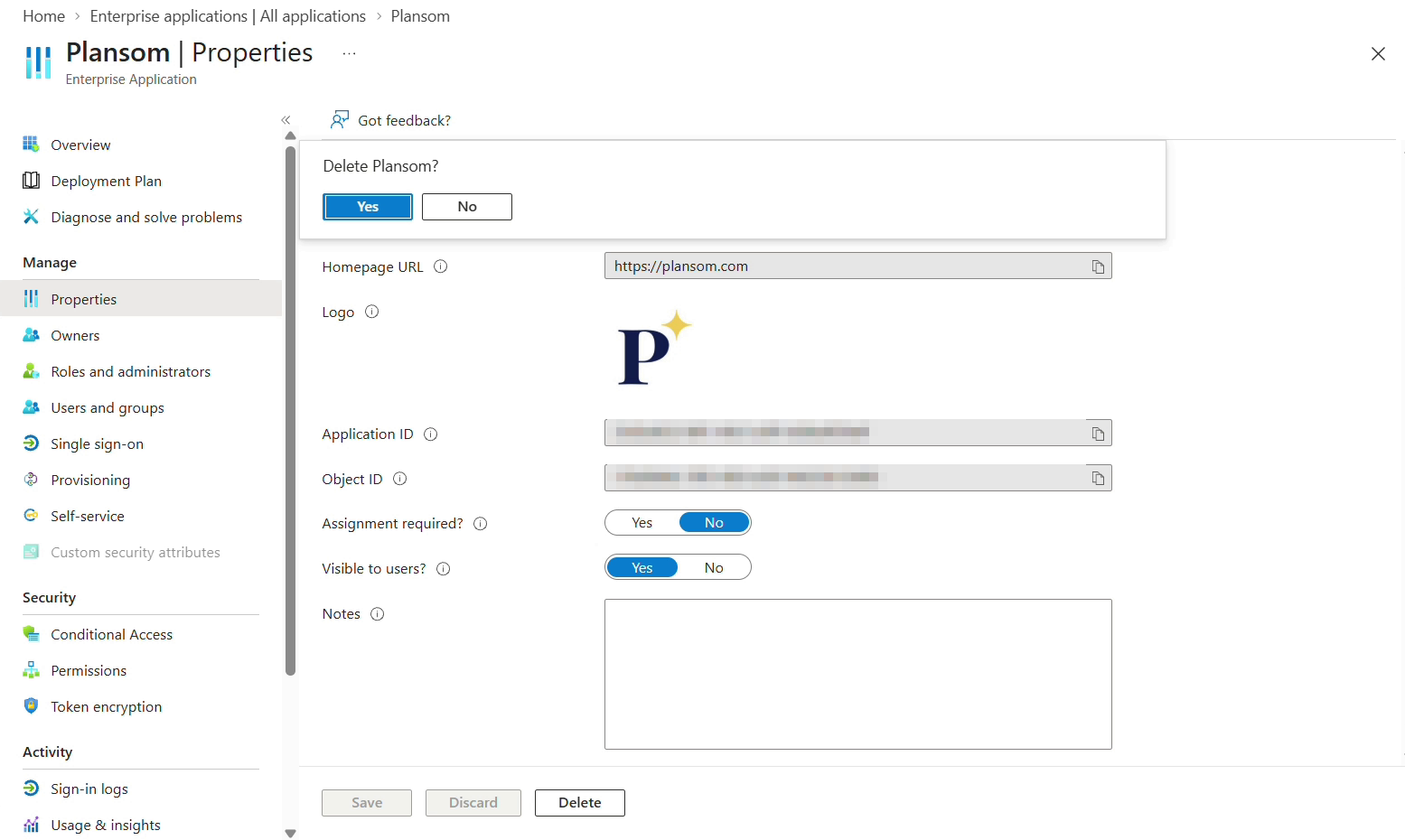
After that, Plansom's agents can no longer use Microsoft 365 for anyone in your company. Emails, events, files and SharePoint items the agent created stay in Microsoft 365. See Microsoft's guide to reviewing and revoking app permissions.
If you're not an admin and only want to stop Plansom using your own Microsoft account, disconnect it in Plansom as described in Disconnect Microsoft 365.
Privacy
Plansom's use of your Microsoft 365 data is governed by our Privacy Policy.