5.9. ClickUp
Overview
Plansom is an AI work platform that helps teams set goals, track execution, and get results with AI agents. Connecting ClickUp lets your Plansom agents work with your ClickUp tasks, lists, docs and comments. Agents can tell you what's open, help you decide what to work on next, keep ClickUp up to date, and turn your ClickUp work into Plansom goals and tasks your team can track, all from inside Plansom's AI agent chat.
How It Works
Once ClickUp is connected and added to an agent, you can ask that agent about your ClickUp work in plain language, and it answers using your live ClickUp data. For example, you can ask it to:
- See what's open: "What's open in my ClickUp workspace? List the open tasks in 'Get Started with ClickUp' and 'Project 1' with status, priority, assignee and due date."
- Turn ClickUp work into a plan: "Create a Plansom goal called 'Roll out ClickUp for the team', and add every open task from the ClickUp list 'Get Started with ClickUp' as a task under that goal, keeping the due dates and priority." Plansom is a goals and tasks platform, not just a Q&A chat, so the agent can act on what it finds.
- Keep ClickUp up to date: "In ClickUp, add a comment on the task 'Import Your Work into ClickUp' saying it is now tracked in Plansom. Then create a new ClickUp task in 'Project 1' called 'Review rollout progress in Plansom', due this Friday."
- Plan your day: "Which of these tasks are due soonest? Add the top two to My Day in Plansom."
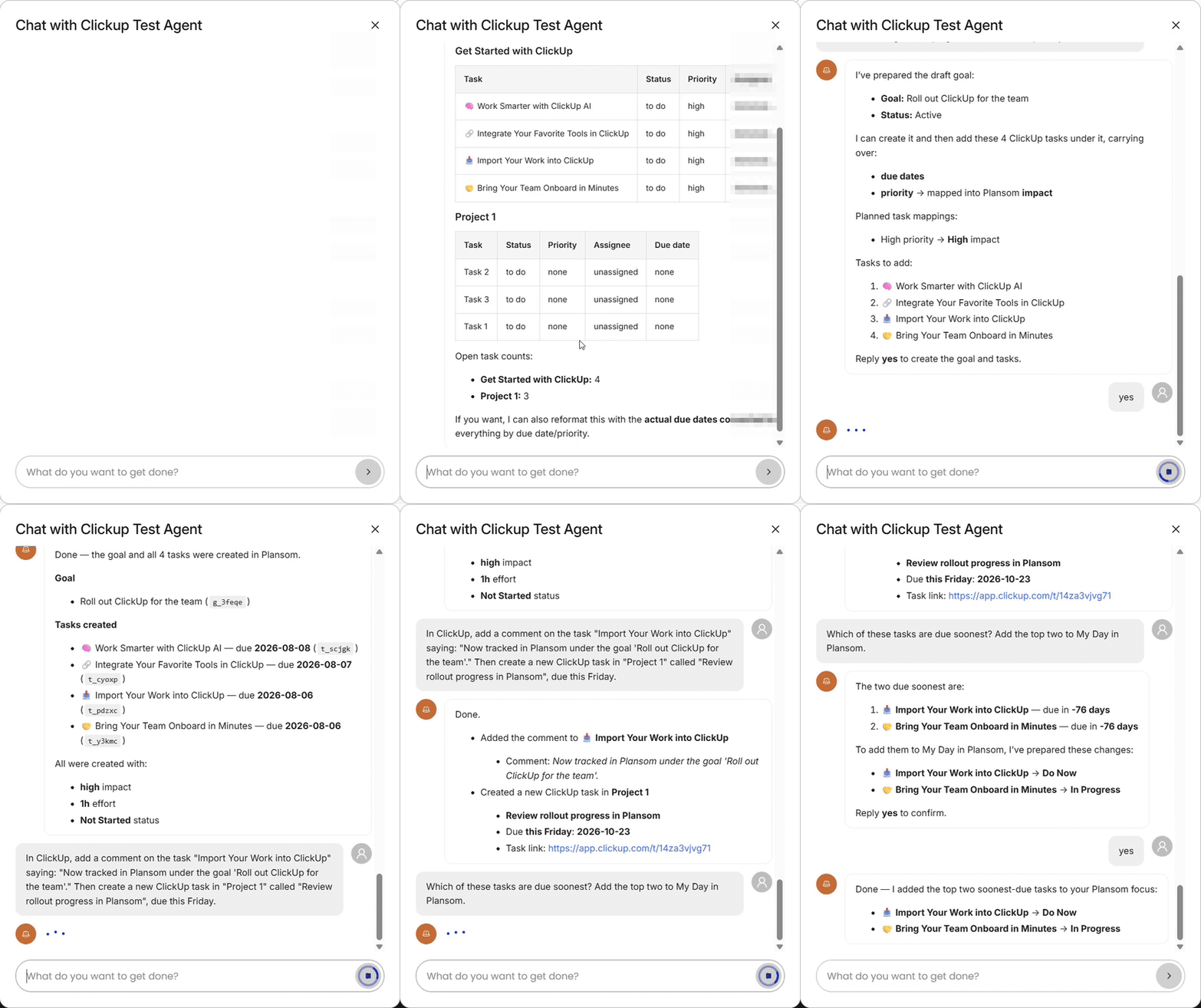
Before the agent creates a goal or task in Plansom, it shows you a draft and asks you to confirm. Tasks the agent creates live under the goal they move forward, so you can track progress in Work → Goals and see each next step in My day.
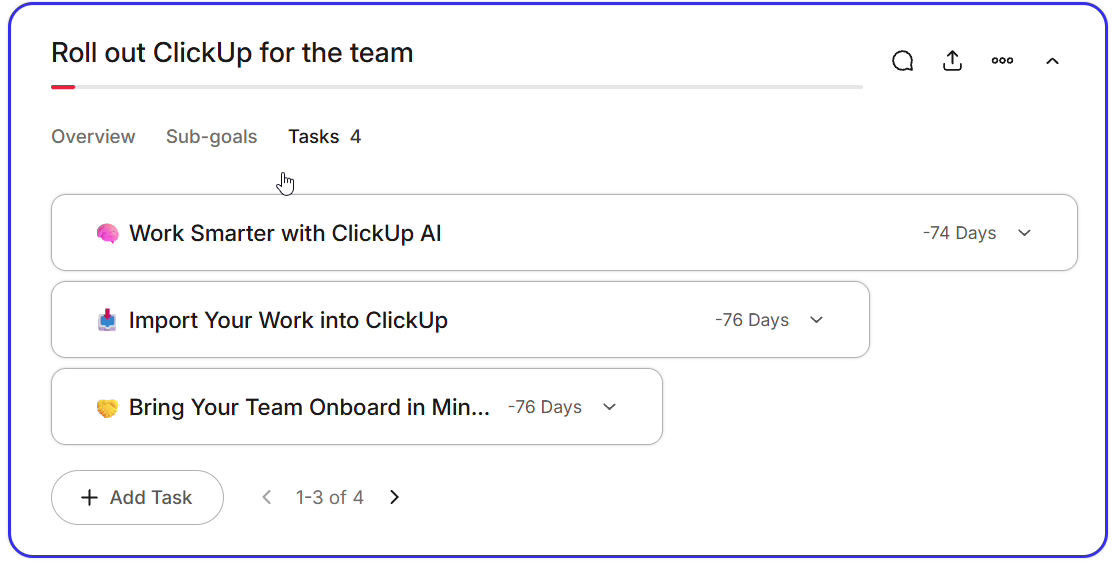
When you ask the agent to change something in ClickUp, such as adding a comment or creating a task, it makes the change right away. Be specific about which task or list you mean.
What you need
- A ClickUp account (any plan, including Free)
- A Plansom account. Sign up if you don't have one yet.
Each team member connects their own ClickUp account. The agent acts as that person and works only with what they can already see and do in ClickUp. Everything the agent changes in ClickUp appears as made by that person.
Each connection is for one ClickUp workspace: the one you pick on ClickUp's screen while connecting.
ClickUp limits how many actions AI tools can take each day, based on your ClickUp plan. At the time of writing, ClickUp allows 100 actions a day on the Free plan, 300 on Unlimited, 1,000 on Business, 2,500 on Business Plus and 5,000 on Enterprise, and its Everything AI add-on raises these limits. Each question you ask can use several actions. ClickUp sets these limits and may change them; see ClickUp's MCP documentation for the current numbers.
Connect ClickUp
- Log in to Plansom, or sign up if you do not have an account yet
- Go to Resources → Agents in the left sidebar and open the Connectors tab
- Find ClickUp and click Connect ClickUp

-
Log in to ClickUp if asked. The ClickUp screen says ClickUp MCP Service rather than Plansom: this is the service ClickUp uses to connect AI tools such as Plansom to your workspace.
-
If ClickUp asks you to select a workspace, choose the one you want Plansom to use and click Connect Workspace. If you're already logged in to ClickUp and have connected before, ClickUp may skip this step.
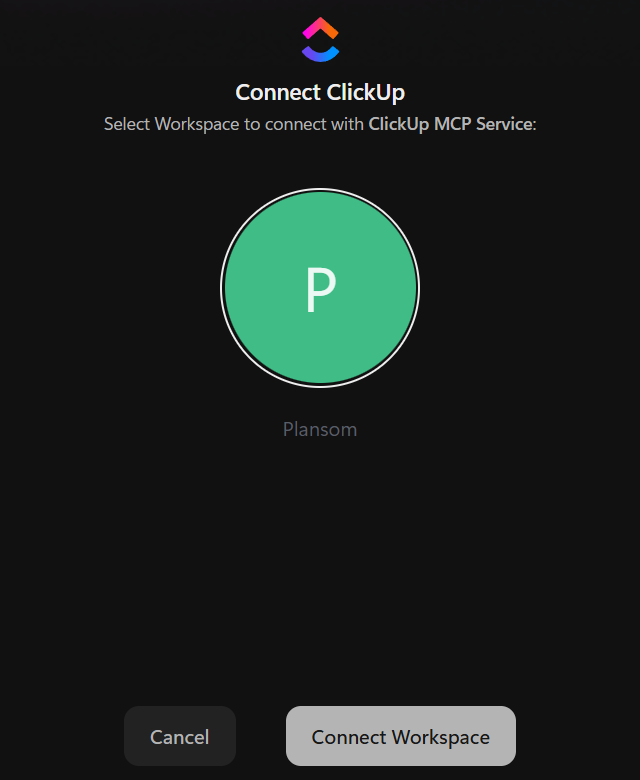
If the connection doesn't go as expected, see Troubleshooting.
After You Connect
Once you've connected, you are taken back to Plansom, and Plansom shows a "ClickUp connected" confirmation message.

In Resources → Agents → Connectors, ClickUp now shows a switch that is turned on, which means it's connected.

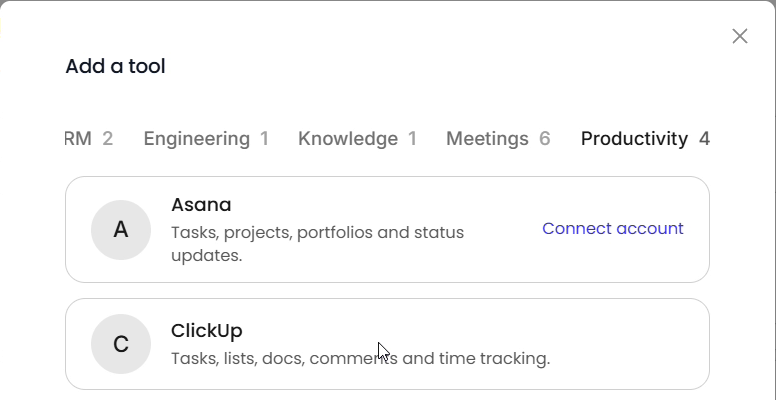
To start using it, add ClickUp to an agent: create a new agent or open an existing one, click + next to What tools does it need?, open the Productivity tab in Add a tool, and select ClickUp. Add Plansom as a tool too, so the agent can create goals and tasks from your ClickUp work.

To start chatting with that agent, go to Resources → Agents in the left sidebar, find the agent's card, and click Chat on it. That agent can now use ClickUp in conversations, as shown above in How It Works.
Troubleshooting
- ClickUp's screen doesn't appear, or you aren't taken back to Plansom after connecting: try connecting again from Resources → Agents → Connectors.
- The agent doesn't find a list or task you expect: Plansom only sees the ClickUp workspace you chose when connecting, and only what your ClickUp account can access. To use a different workspace, disconnect ClickUp and connect again, choosing that workspace.
- The agent says ClickUp's limit has been reached: your workspace has used up its daily ClickUp actions for AI tools (see What you need). Try again later, or ask your ClickUp admin about a plan or add-on with a higher limit.
- The agent can't reach ClickUp, but ClickUp still shows as connected in Plansom: this can happen if Plansom's access was removed in ClickUp. Disconnect ClickUp in Resources → Agents → Connectors, then connect it again.
- The agent asks you to connect ClickUp: your ClickUp connection was removed. Connect it again as described in Connect ClickUp.
If the issue persists, contact support.
Disconnect ClickUp
- Go to Resources → Agents in the left sidebar and open the Connectors tab
- Find ClickUp and turn off its switch
- Click Disconnect to confirm
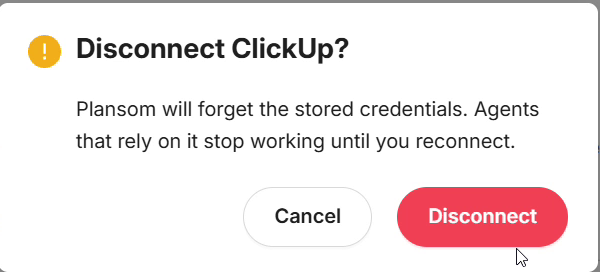
Plansom shows a "ClickUp disconnected" message, and ClickUp shows Connect ClickUp again.
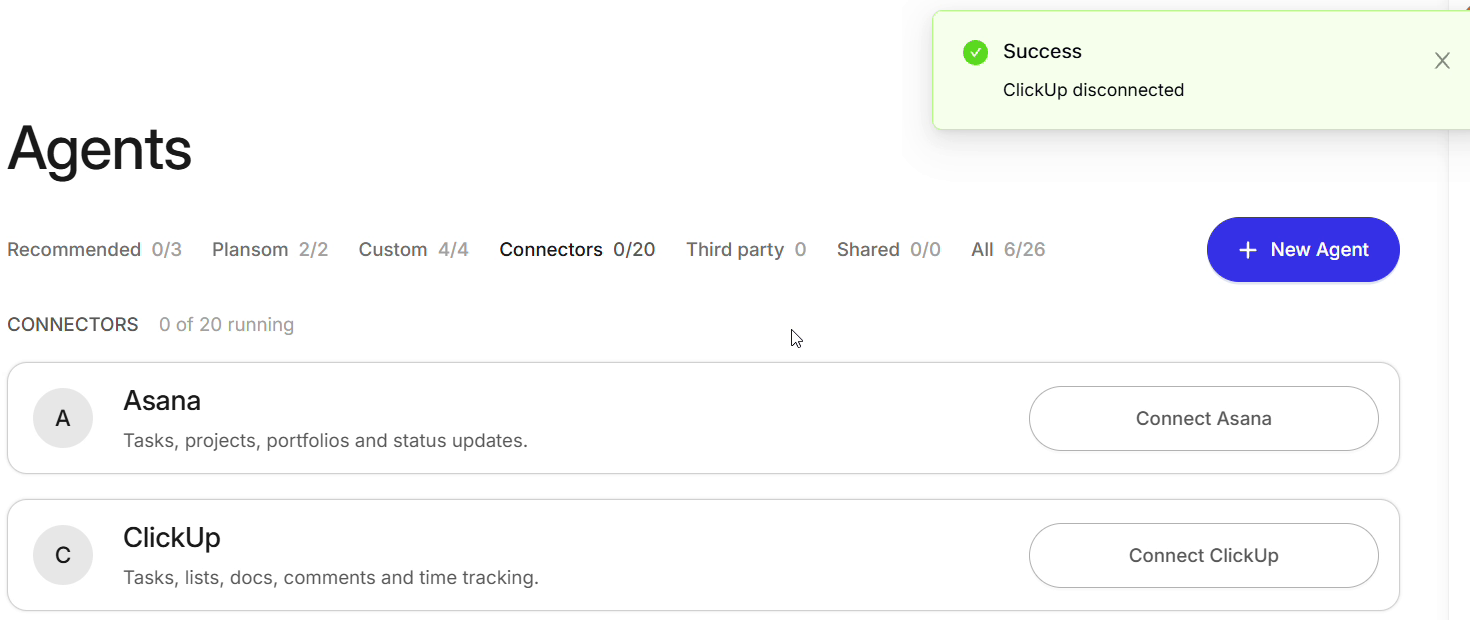
Disconnecting immediately stops Plansom from using your ClickUp account. It does not delete any goals, tasks, or other Plansom records already created, and it doesn't change anything in ClickUp.
The connection stays listed in your ClickUp account until you remove it there, as described below.
Removing access from your ClickUp account directly
You can also remove the access from ClickUp's side:
- In ClickUp, click your avatar in the top-right corner and open Settings
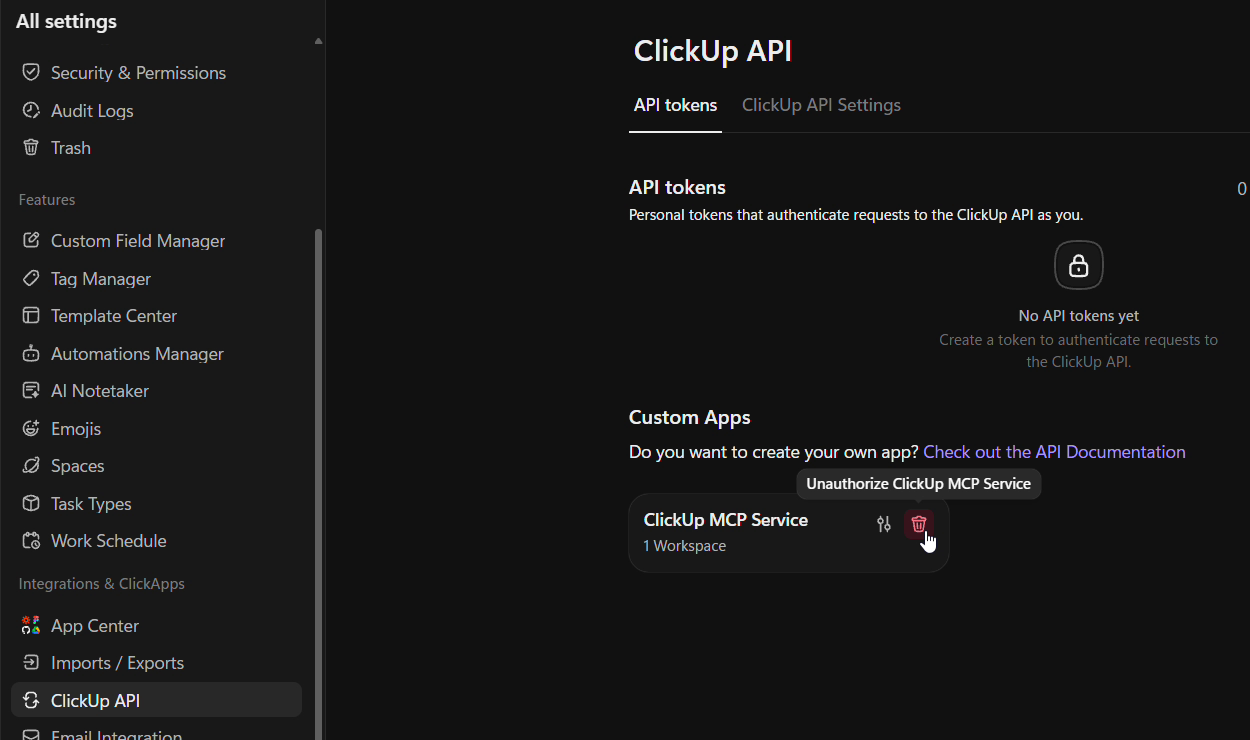
- In the left menu, under Integrations & ClickApps, select ClickUp API
- Under Custom Apps, find ClickUp MCP Service and click its delete (trash) icon
- Click Remove to confirm
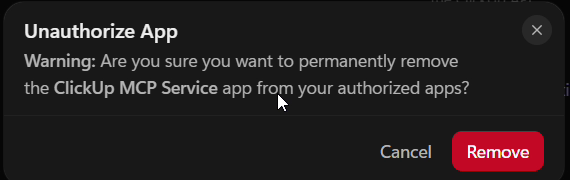
ClickUp lists the connection as ClickUp MCP Service, not Plansom. If you've connected other AI tools to ClickUp the same way, removing it may disconnect those too.
This stops Plansom from using your ClickUp account. Tasks, comments, and other content the agent added to ClickUp stay in ClickUp. If ClickUp still shows as connected in Plansom afterwards, disconnect it there as well, as described in Disconnect ClickUp.
Privacy
Plansom's use of your ClickUp data is governed by our Privacy Policy.