5.4. Zoho
Overview
Plansom is an AI work platform that helps teams set goals, track execution, and get results with AI agents. Connecting Zoho lets your Plansom agents search and reference your Zoho Mail, Calendar, WorkDrive, and CRM data — directly from inside Plansom's AI agent chat, without needing to leave Plansom.
Zoho is connected at the organization level: an organization owner or admin sets up Zoho once for the organization, and each organization member then connects their own Zoho account individually.
How It Works
Once Zoho is connected and added to an agent, you can ask that agent anything that draws on your Zoho apps, and it answers directly in the conversation using real Zoho data — for example, listing your recent emails, upcoming calendar events, files in WorkDrive, or open deals in Zoho CRM, depending on which Zoho products your organization uses.

Before You Connect
Before an organization member can connect Zoho, an organization owner or admin needs to set it up once for the organization. This has two parts: generating a URL in Zoho, and adding that URL to Plansom.
In Zoho
- Go to Zoho's own console (mcp.zoho.com, or your Zoho data center's regional address)
- Generate an MCP server for your organization
- Copy the URL it gives you
Follow Zoho's own MCP implementation guide for the exact steps to create a Zoho MCP server.
In Plansom
- Go to Organization Settings → AI Configuration
- Find the Zoho Integration section
- Paste the URL you copied from Zoho
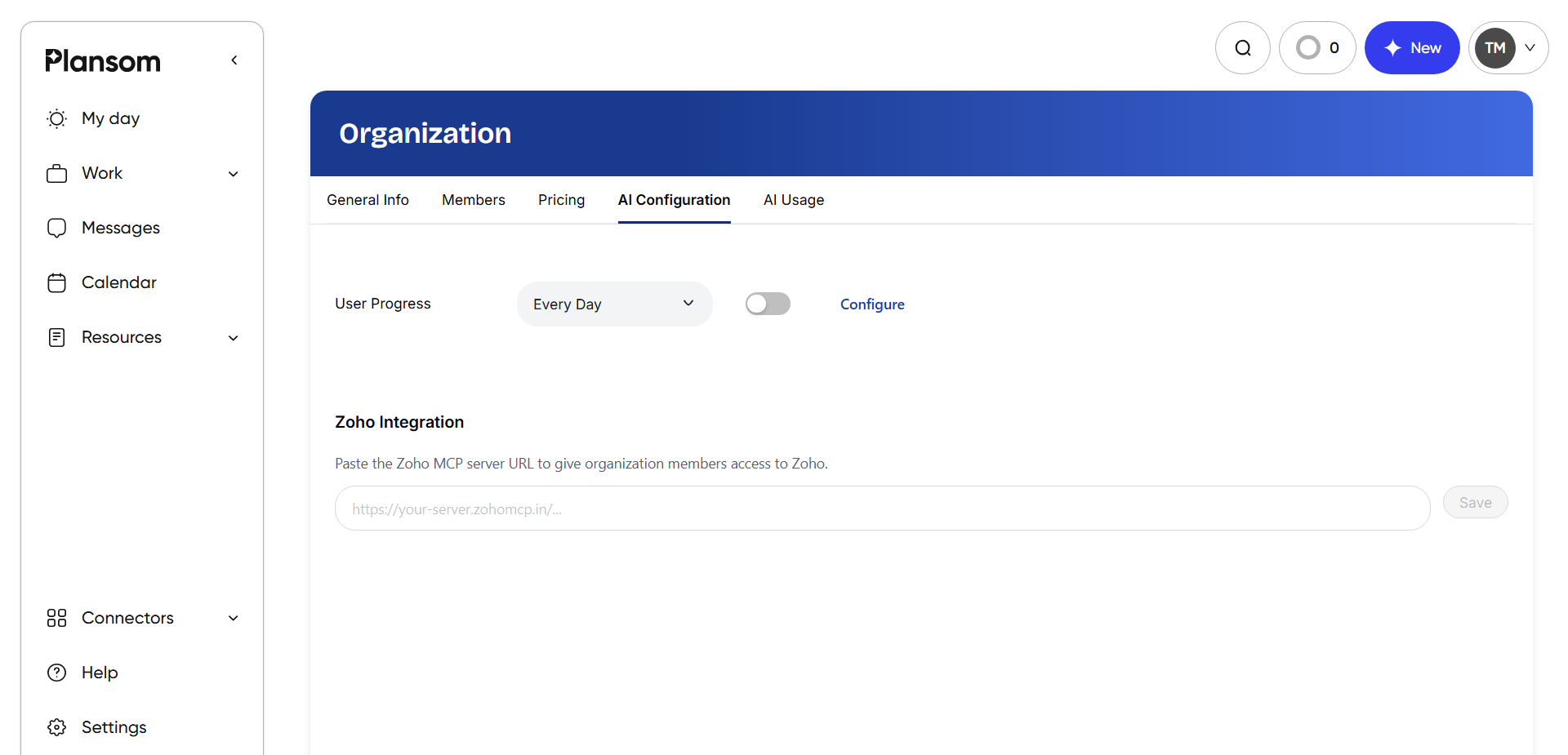
This is a one-time setup for the organization, done by an owner or admin — not something each organization member needs to do. Once it's done, Zoho becomes available for organization members to connect individually, as described below.
Connect Zoho
- Log in to Plansom, or sign up if you do not have an account yet
- Open your profile's Account Details and go to the Integrations tab (also reachable from Connectors in the left sidebar)
- Find Zoho and click Connect

- If you belong to more than one organization, choose which one you're connecting Zoho for
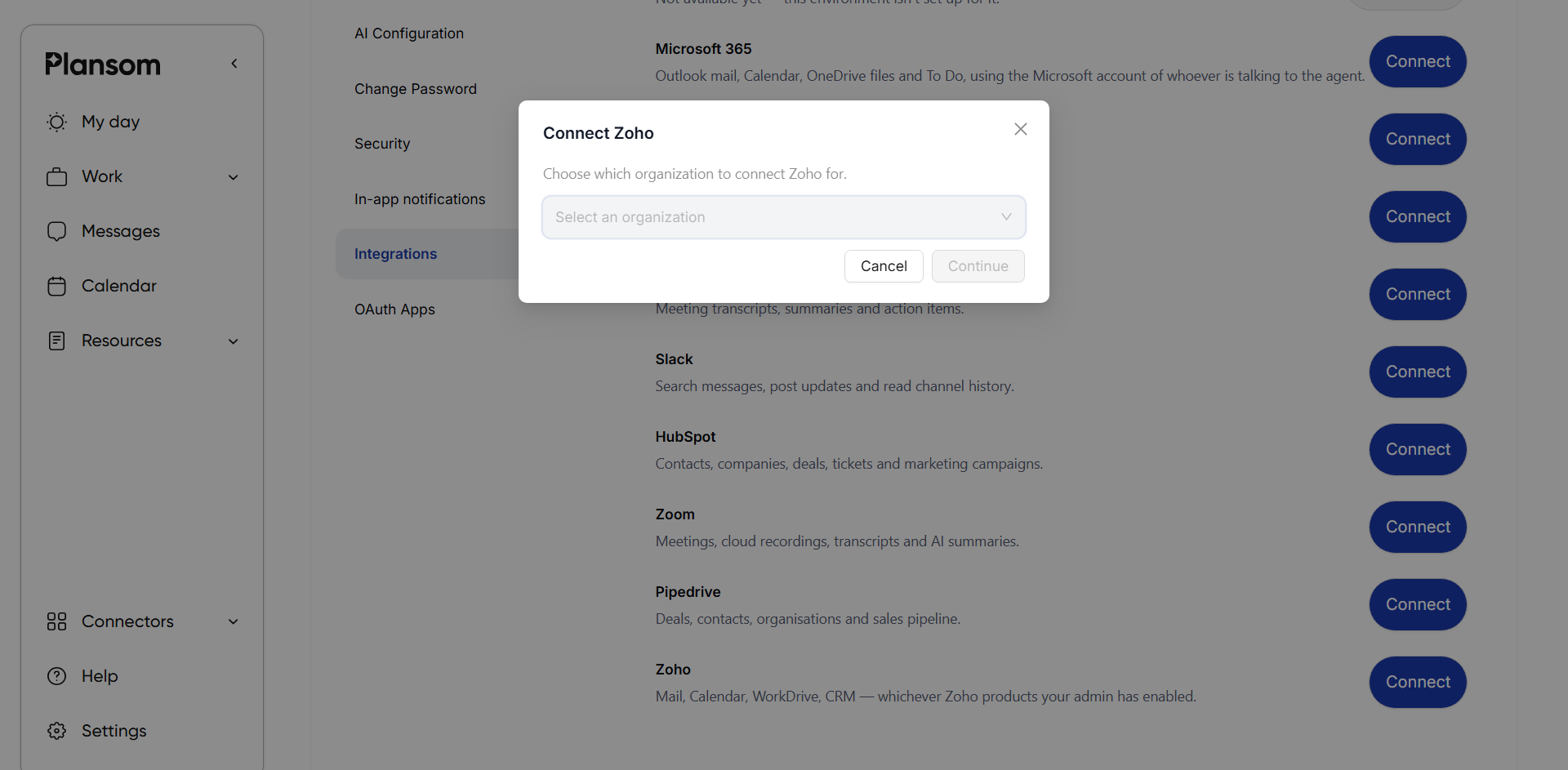
- Approve the connection on the Zoho authorization screen that opens, using your own Zoho account
After You Connect
Once approved, you are redirected back to Plansom, and Plansom shows a "Zoho connected" confirmation message.
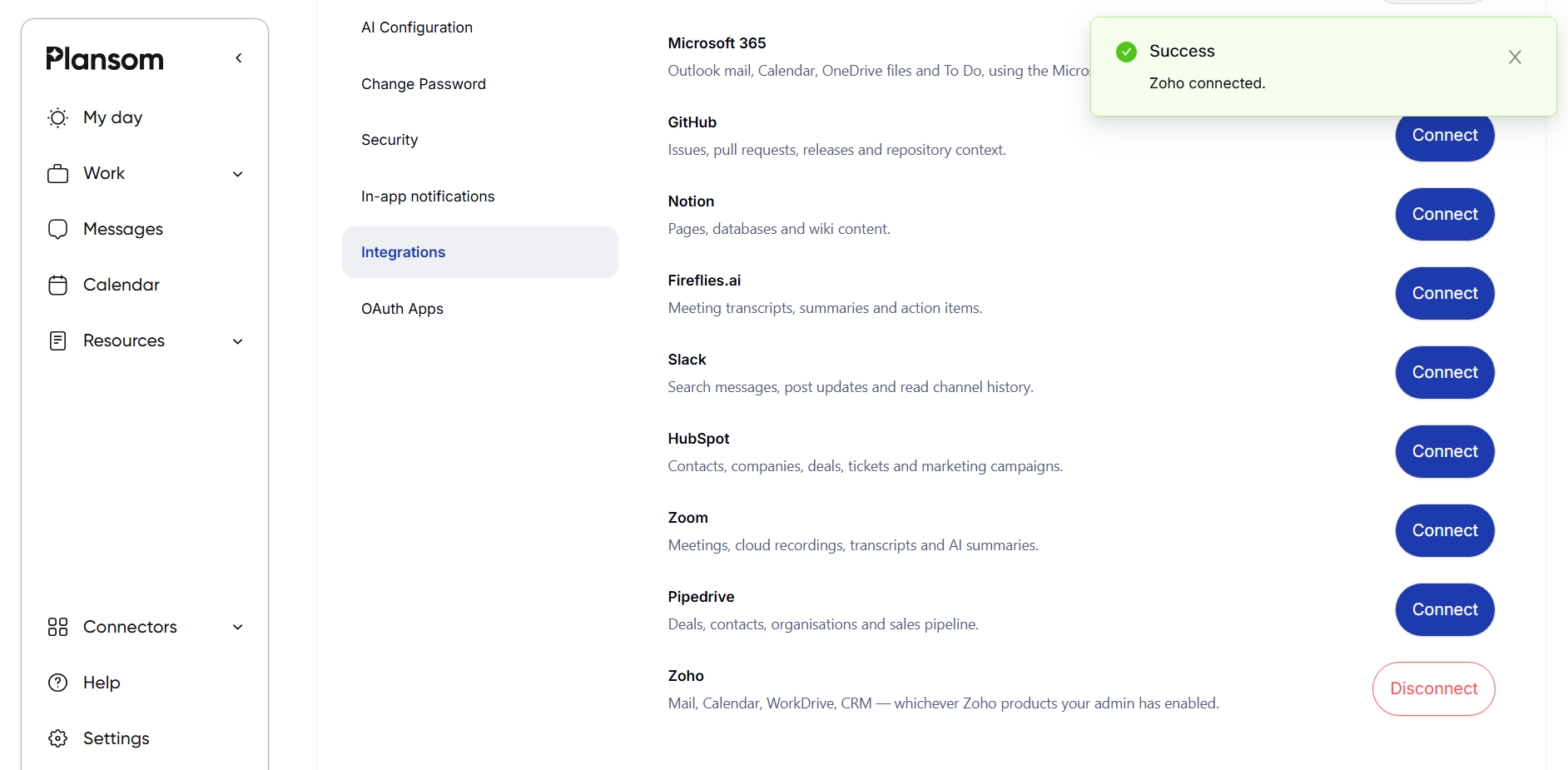
To start using it, add Zoho to an agent: create a new agent or open an existing one, go to its Tools tab, click Connect a new tool, and select the Zoho tool you want under the Zoho tab.
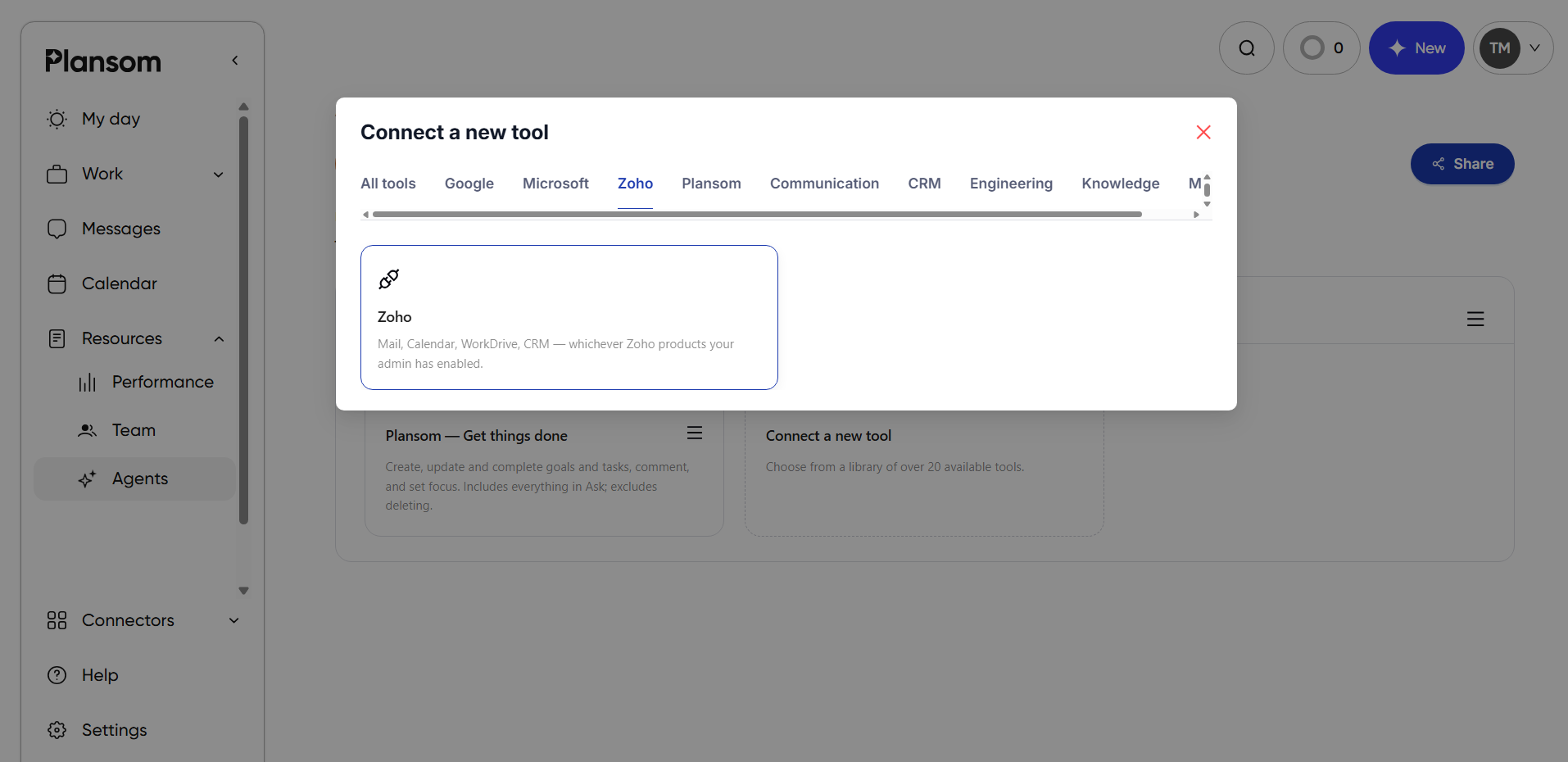
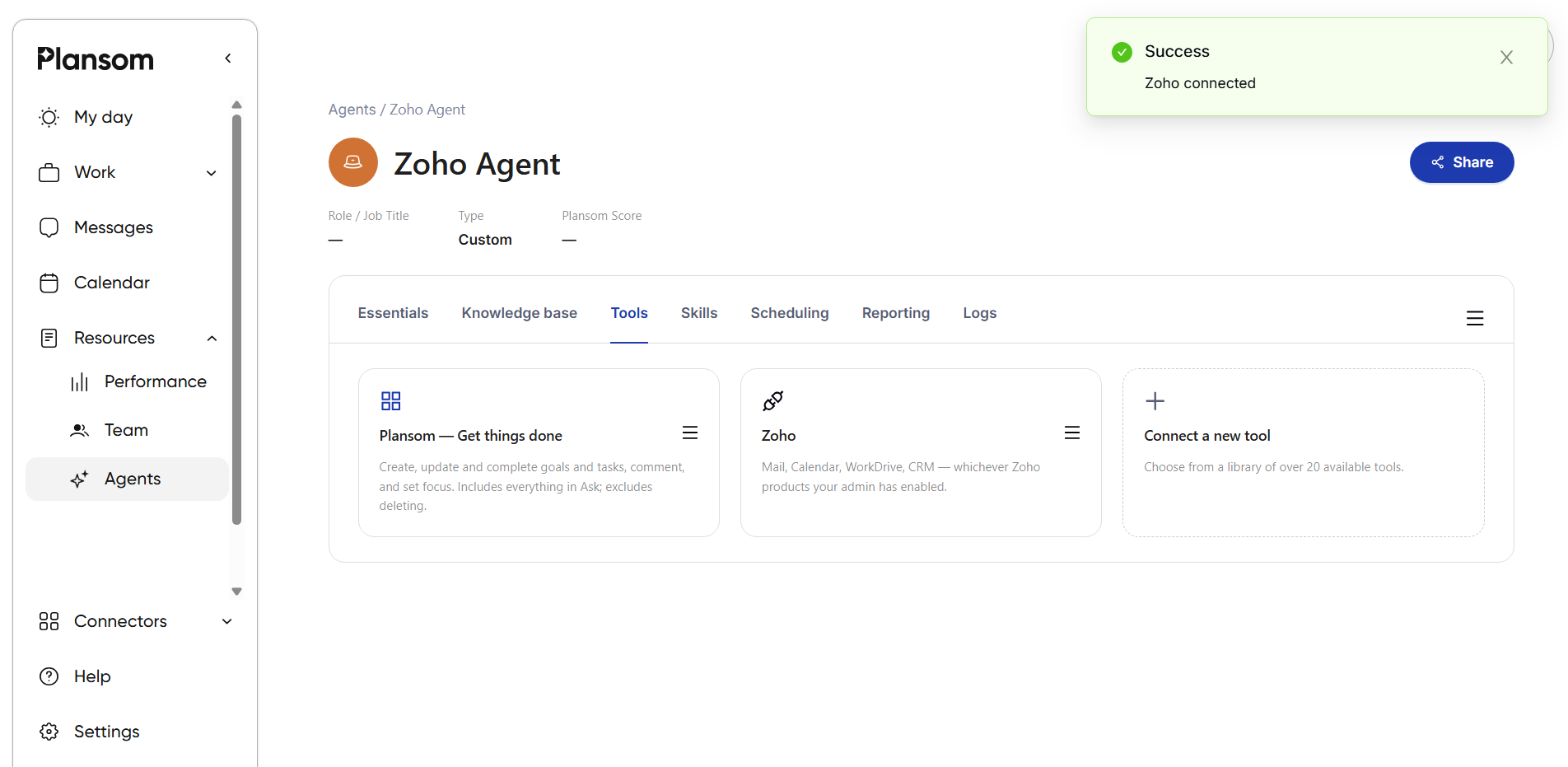
That agent can now use Zoho as context in conversations, as shown above in How It Works.
Zoho only connects one account at a time. If your organization's admin ever regenerates or removes the Zoho URL, every organization member will need to reconnect.
Privacy
Plansom's use of your Zoho data is governed by our Privacy Policy.