4.4. Tracking your results
In Plansom, tracking is automatic: every update to goals, sub-goals and tasks rolls up into a live picture of progress. You don’t need to ask for status, the system shows it in real time.
How to Track Results
Start with the view selector.
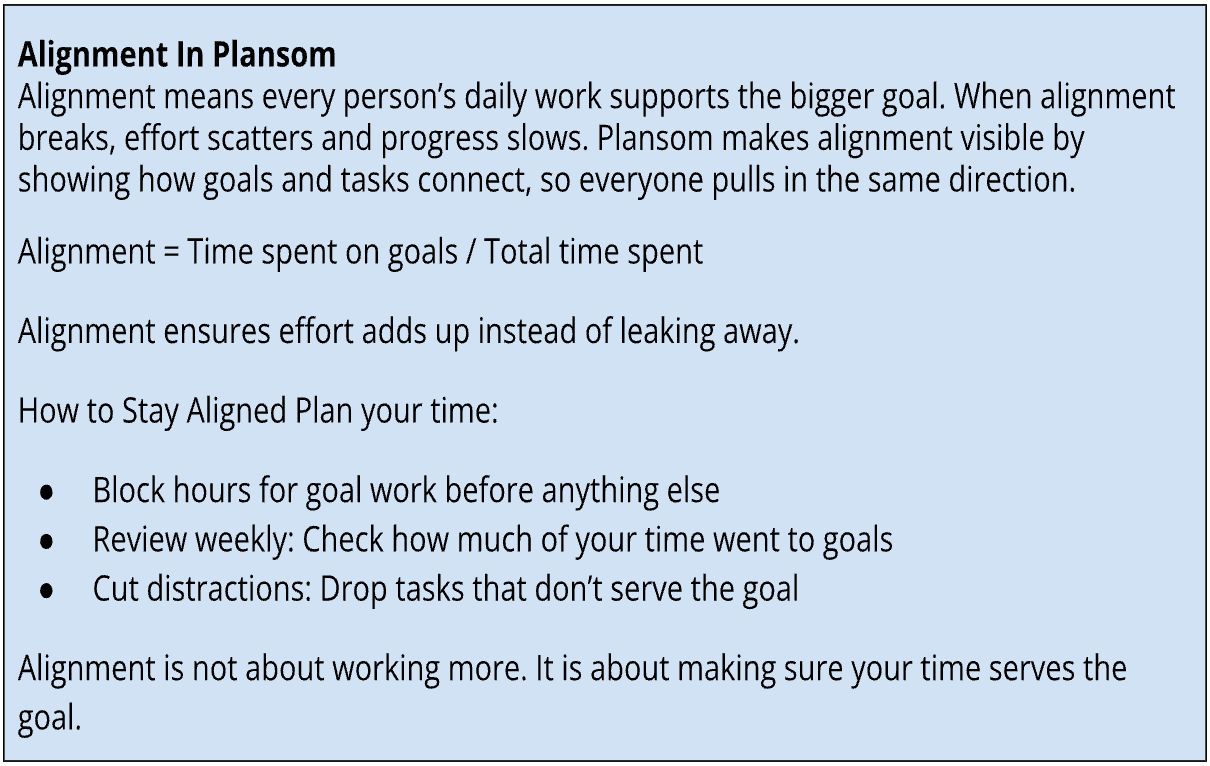
Team View: Switch to see all goals and tasks across your team. Graphs highlight what is on track and what is delayed. Alignment indicators show how well work ladders up to higher goals. If something is drifting or blocked, it stands out clearly.
My View: Focus only on your own work. See your goals, tasks and outcomes in one place, along with your alignment and timeliness.
Goal View: Open a goal to see its progress bar, outcomes (Epic, OK, Miss) and timeline. This shows how much is done, what is left and whether it is on time.
Graphs in Plansom turn raw updates into clear signals.
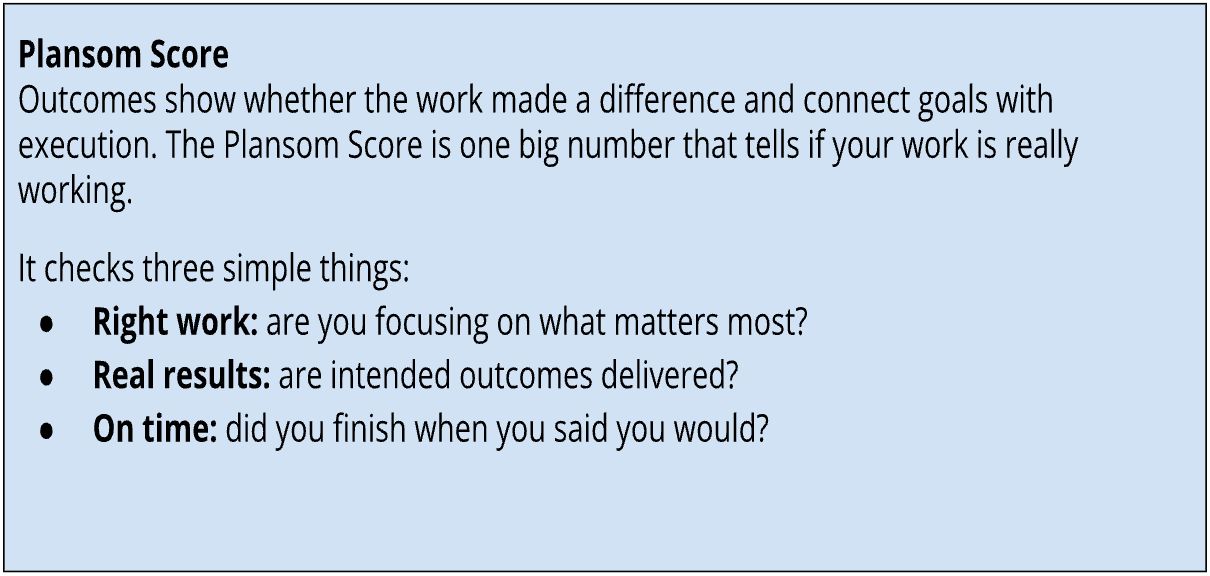
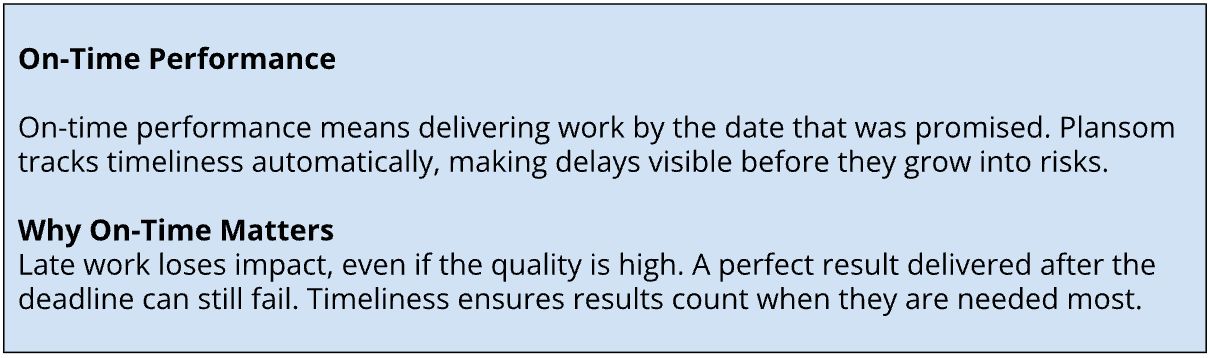
Outcome charts show the quality of work by grading results as Epic, OK, or Miss. Timeliness graphs make it visible which tasks are on track and which are slipping. Alignment indicators shows how well tasks ladder up. Blockers are flagged clearly, so stuck items surface early.
Tracking connects numbers to names, so results are never abstract.