5.5. Pipedrive
Overview
Plansom is an AI work platform that helps teams set goals, track execution, and get results with AI agents. Connecting Pipedrive lets your Plansom agents work directly with your sales pipeline — answering questions about your deals, contacts, leads, and activities, keeping your CRM up to date, and turning sales follow-ups into Plansom goals and tasks your team can track — all from inside Plansom's AI agent chat.
How It Works
Once Pipedrive is connected and added to an agent, you can ask that agent about your pipeline in plain language, and it answers using your live Pipedrive data. For example, you can ask it to:
- Summarize your pipeline — "Give me a quick summary of my open Pipedrive deals: value, stage, owner and expected close date."
- Find records fast — "Search Pipedrive for Acme and tell me who the contact person is."
- Work with leads — "List my open leads in Pipedrive," or "Add a new lead for Initech worth $8,000."
- Keep deals up to date — "Log a follow-up call tomorrow at 11am on the Acme renewal deal," or "Add a note to the Globex pilot deal: sent pilot proposal."
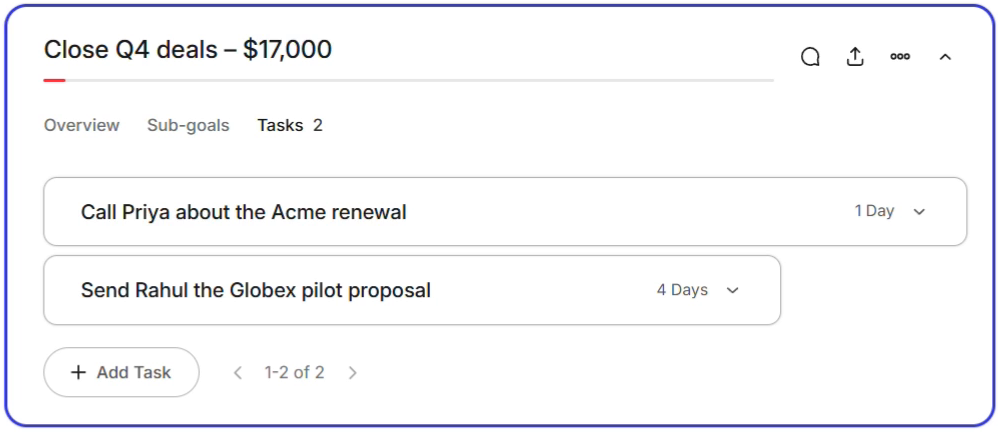
- Turn your pipeline into a plan — "Create a Plansom goal 'Close Q4 deals' based on my open Pipedrive deals," then "Under that goal, create a task for each deal's next step," since Plansom is a goals and tasks platform, not just a Q&A chat.

Tasks the agent creates live under the goal they move forward, so you can track progress in Work → Goals and see each next step in My day.
What you need
- A Pipedrive account (any plan)
- A Plansom account — sign up if you don't have one yet
Each team member connects their own Pipedrive account, and the agent works only with the data that person can already access in Pipedrive, following their existing roles and visibility settings. Every change the agent makes appears in Pipedrive's change log.
Connect Pipedrive
- Log in to Plansom, or sign up if you do not have an account yet
- Go to Resources → Agents in the left sidebar and open the Connectors tab
- Find Pipedrive and click Connect Pipedrive

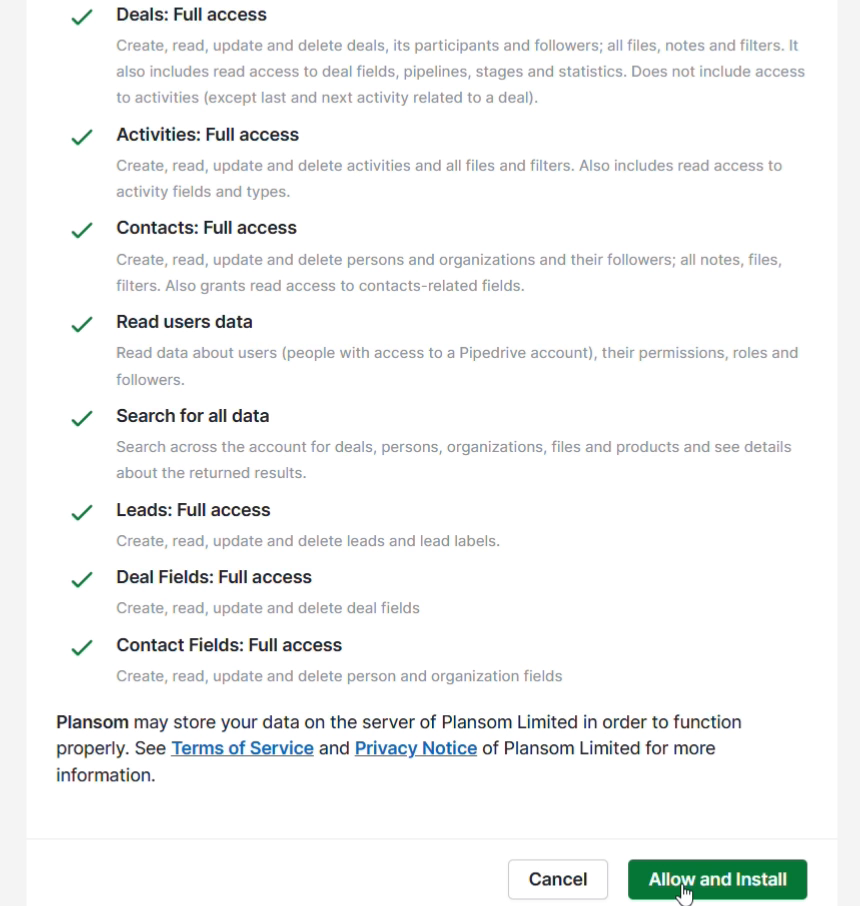
- Sign in to Pipedrive if asked, choose your company, review the permissions, and click Allow and Install
If the connection doesn't go as expected, see Troubleshooting.
Installing from the Pipedrive Marketplace
If you found Plansom in the Pipedrive Marketplace, the connection is made from inside Plansom: log in to Plansom (or sign up), then follow the steps in Connect Pipedrive above.
After You Connect
Once approved, you are redirected back to Plansom, and Plansom shows a "Pipedrive connected" confirmation message.
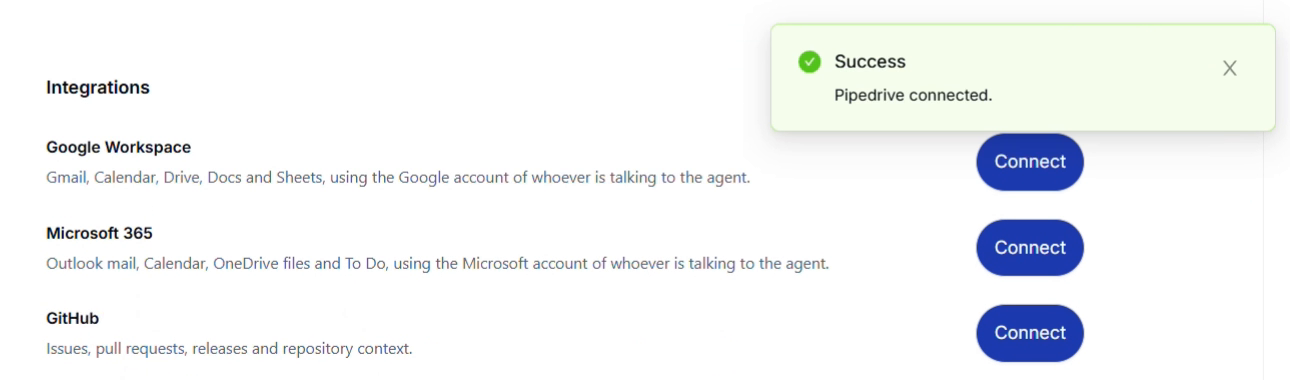
In Resources → Agents → Connectors, Pipedrive now shows a switch that is turned on, which means it's connected.

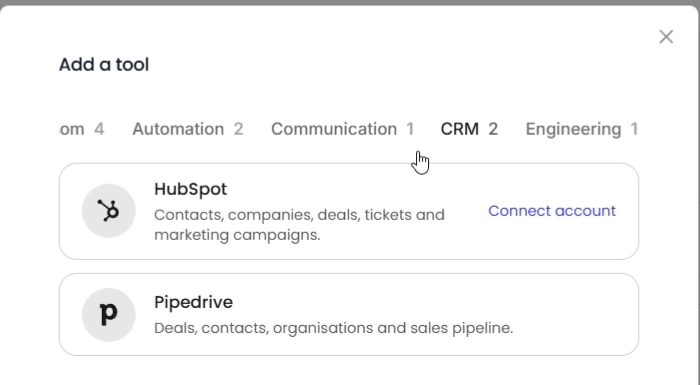
To start using it, add Pipedrive to an agent: create a new agent or open an existing one, go to its Tools tab, click Connect a new tool, and select Pipedrive under CRM. Add Plansom as a tool too, so the agent can create goals and tasks from your deals.
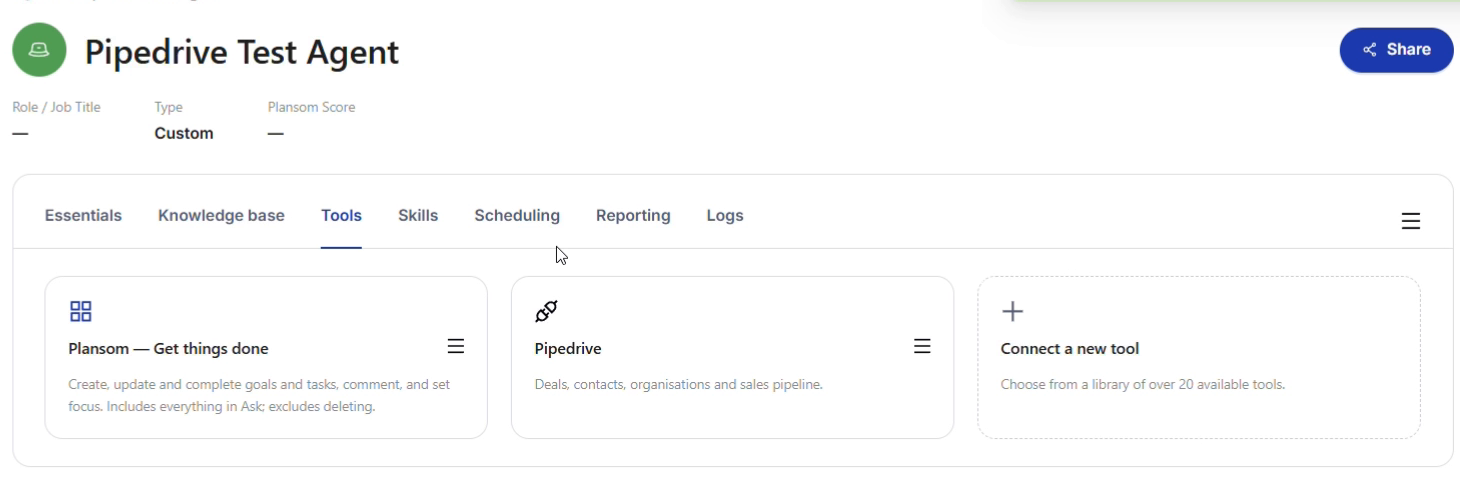
To start chatting with that agent, go to Resources → Agents in the left sidebar, find the agent's card, and click Chat on it. That agent can now use Pipedrive in conversations, as shown above in How It Works.
Troubleshooting
If you don't see Pipedrive's authorization screen after clicking Connect, or you aren't redirected back to Plansom after clicking Allow and Install, try connecting again from Resources → Agents → Connectors. If the issue persists, contact support.
Disconnect Pipedrive
- Go to Resources → Agents in the left sidebar and open the Connectors tab
- Find Pipedrive and turn off its switch
- Click Disconnect to confirm
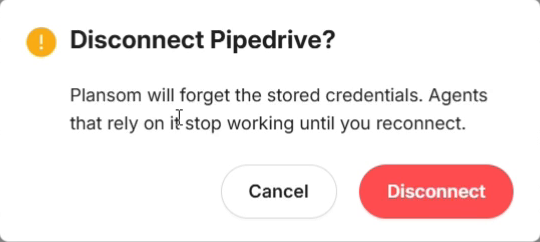
Plansom shows a "Pipedrive disconnected" message, and Pipedrive shows Connect Pipedrive again.
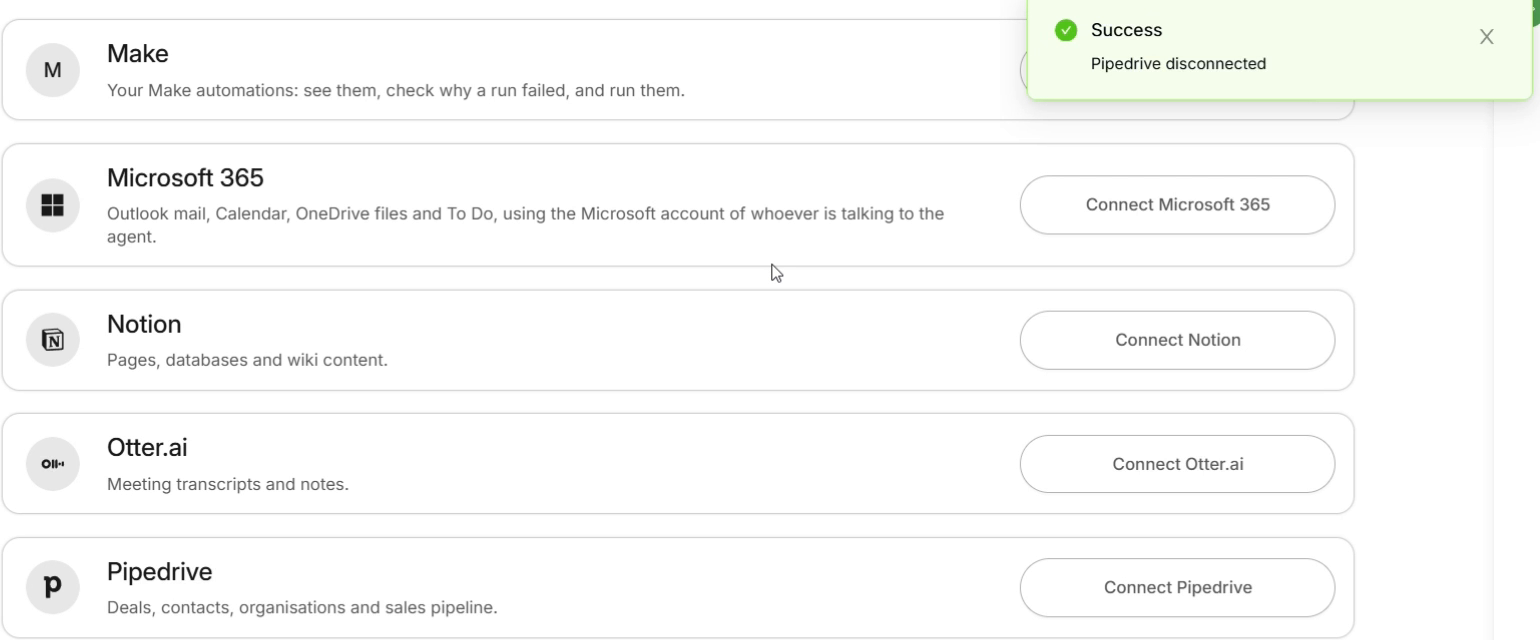
Disconnecting immediately stops Plansom from accessing your Pipedrive data going forward. It does not delete any goals, tasks, or other Plansom records already created from your Pipedrive data — those remain unchanged.
Removing Plansom from your Pipedrive account directly
You can also remove Plansom from Pipedrive's side:
- In Pipedrive, open Tools and apps → Installed apps
- Find Plansom and uninstall it
This revokes Plansom's access on Pipedrive's side.
Privacy
Plansom's use of your Pipedrive data is governed by our Privacy Policy.